Month: September 2023

  • Learning Vim like a Martial Art

    man doing karate stunts on gym
    Photo by Uriel Soberanes on Unsplash

    Learning Vim is a challenge. There are a lot of keys to remember and Vim works in a different way to other editors. I had an idea about structuring a Vim tutorial like learning a martial art, where each milestone is represented by a belt colour. We start at white belt where we learn the foundations. As we progress, we end up at black belt where we’ll be whizzing around super quick, making edits along the way.

    I wrote six separate articles to get to black belt, and in this article, I’ve summarised them all in on place.

    White Belt

    At white belt level, we’ll learn the basics to edit a file.

    • In terminal, vim <filename> to start editing.
    • i – enter insert mode. Write.
      <Escape> – exit to return to normal mode.
    • u – undo.
      <Ctrl>+r – redo.
    • h – move left.
      j – move down.
      k – move up.
      l – move right.
    • x – delete a character.
    • :w – save your file.
      :q – quit Vim.
      :wq – write the file and close Vim.

    Yellow Belt

    At yellow belt level, we learn to move faster using motions and introduce copying and pasting. We also learn how to repeat commands.

    Horizontal Motions

    • w – to move by word.
      b – move backwards by word.
    • 0 – move cursor to the start of the line.
      ^ – move to start of first character on line.
      $ – move to the end of the line.

    Vertical Motions

    • H – move to the top of the screen.
      M – move cursor to middle of screen.
      L – move cursor to bottom of screen.
    • ( – move backwards by a sentence.
      ) – move forwards by a sentence.
    • { – move up by a paragraph.
      } – move down by a paragraph.

    Copying & Pasting

    • yy – copy whole line.
    • p – paste below cursor.
      P – paste above cursor.
    • dd – delete a whole line and put into clipboard (cut).

    Repeating

    • <number> + <motion> to repeat a motion.
    • . – repeat last change.

    Green Belt

    At green belt level, we’ll learn to get to insert mode faster, in all directions. Then, we’ll cover more motions. Finally, we introduce jumps.

    Insert Mode Shortcuts

    • I – go into insert mode before the first non-blank character on the line1.
    • A – go into insert mode after the last character on the line2.
    • o – go into insert mode on the next line below.
      O – go to insert mode on the line above.
    • a – go to insert mode after the cursor.
    • s – delete character and go into insert mode.

    Motions

    • W – go forwards by a WORD.
      B – go backwards a WORD.
    • e – go forwards to the end of a word.
      ge – go backwards to the end of a word.
    • <Ctrl> + u – move up by half a screen.
      <Ctrl> + d – move down by half a screen.
    • <Ctrl> + f – move up a page.
      <Ctrl> + b – move down by a page.
    • <line-number> + G – go to the line number.

    Jumping

    • <Ctrl> + o – go backwards in jump list.
      <Ctrl> + i – go forwards in jump list.

    Blue Belt

    At blue belt level, we’ll introduce visual mode, cover more motions and combine operators with counts and motions.

    Visual Mode

    • v – enter visual mode.
      Use any motion to highlight text.
    • V to highlight the entire line.
      Then use a motion to select more lines.

    Vertical Motions

    • gg – go to top of the file.
      G – go to bottom of the file.
    • / <search term> <Enter> – search forwards for search term.
      n – go to the next match.
      N – go to previous match.
    • ?<search term> <Enter> – search backwards for search term.
      n – go to the next match.
      N – go to previous match.

    Horizontal Motions

    • f + <character> – move cursor to the first match.
    • F + <character> – move cursor to first match before target.
    • t + <character> – move cursor just before the first match.
    • T + <character> to move your cursor just before first match.
    • For all of the above, type ; to repeat the search forwards.
      Type , to repeat search backwards.

    Operator Count Motion

    • Certain commands are called operators, such as delete (d) or copy (y) or change (c). These work with counts and motions:
      • d5w – deletes 5 words.
      • V10j – highlight 10 lines below.
      • y4b – copy 4 words backwards from cursor.
      • c2W – change 2 WORDS.

    More Shortcuts

    • D – to delete text from the cursor to the end of line.
    • C – cut text from the cursor to the end of line and go into insert mode.
    • cc – cut a whole line and go into insert mode.

    Red Belt

    At red belt level, we’ll introduce text objects and a useful commands, including a new mode.

    Text Objects

    Text objects select whole objects, regardless of where the cursor is. We use them in combination with operators.

    • Inner word (iw) text object examples with operators:
      • ciw – change inner word. Will put you in insert mode, ready for new text.
      • diw – delete inner word.
      • yiw – yank (copy) inner word.
      • viw – visualise (highlight) inner word:
    • A word (aw) text object examples:
      • daw – delete a word.
      • caw – change a word. Will put you in insert mode to change text.
      • vaw – visualise (highlight) around word:
    • Inside speech marks (i”) example:
      • vi” – visualise (highlight) everything inside the “ (speech marks):
    • Around speech marks (a”) example:
      • ca” – change around and including the “ (speech marks). Not that this puts you in insert mode.
    • Inside bracket (ib) example:
      • vib – visualise (highlight) everything inside the brackets.
    • Inner bracket (ab) example:
      • cab – change around bracket, works for ( ).
    • Inner tag (it) example:
      • cit – change inner tag, works with any type of <tag>.
    • Around tag (at) example:
      • vat – visualise (highlight) around tag.

    More Useful Commands

    • j – join, useful when want to join two split lines.
    • * (asterisk) – search for next occurrence of word under cursor. You can search for the previous occurrence using the hash key.
    • R – enter replace mode. Now everything you type overwrites existing text. <Esc> to exit replace mode.
    • r – replace one character only.

    Black Belt

    At black belt level, we cover searching and replacing, macros, splitting windows, scrolling and getting to the next level.

    Search & Replace

    • :s/<search term>/<replace term>/g – replace everything on current line.
    • %s:/<search term>/<replace term>/g – replace everything in whole file.

    The g at the end stands for global, which means all occurrences.

    Macros

    To record a macro:

    • q, followed any letter to start recording.
    • Next, type the sequence of commands you’d like to automate.
    • q again to stop recording.
    • @ followed by the letter above to replay macro.

    For an example of how to use a macro, see this article.

    Window Splits

    • <Ctrl> + w, then v for vertical split, or s for (horizontal) split
      • <Ctrl> + w, h to move left.
      • <Ctrl> + w, l to move right.
      • <Ctrl> + w, j to move down.
      • <Ctrl> + w, k to move up.
      • <Ctrl> + w, c to close the window you’re in.
      • <Ctrl> + w, o to close all windows except the one you’re in.

    Once you’ve split a window, you can use e: <filename> to edit that file.

    Scrolling

    • zz – scrolls the screen so the cursor is in the centre.
      zt – scroll so the cursor is at the top.
      zb – scroll so the cursor ends up at the bottom.

    Beyond Black Belt

    We’ve just scratched the surface with what we can do with Vim. Here are some topics you can explore to get beyond black belt:

    • Marks
    • Tags
    • Folding
    • Files
    • Tabs
    • Buffers
    • Undo Tree
    • Vim Script
    • Keymapping

    Getting Help in Vim

    • help: <command> – help on command in Vim.
  • Vim Macro Example

    In this section, we’ll work through a simple example to get familiar with Vim Macros. We’ll edit a column in a tab separated file (TSV) using a macro.

    TSV Example

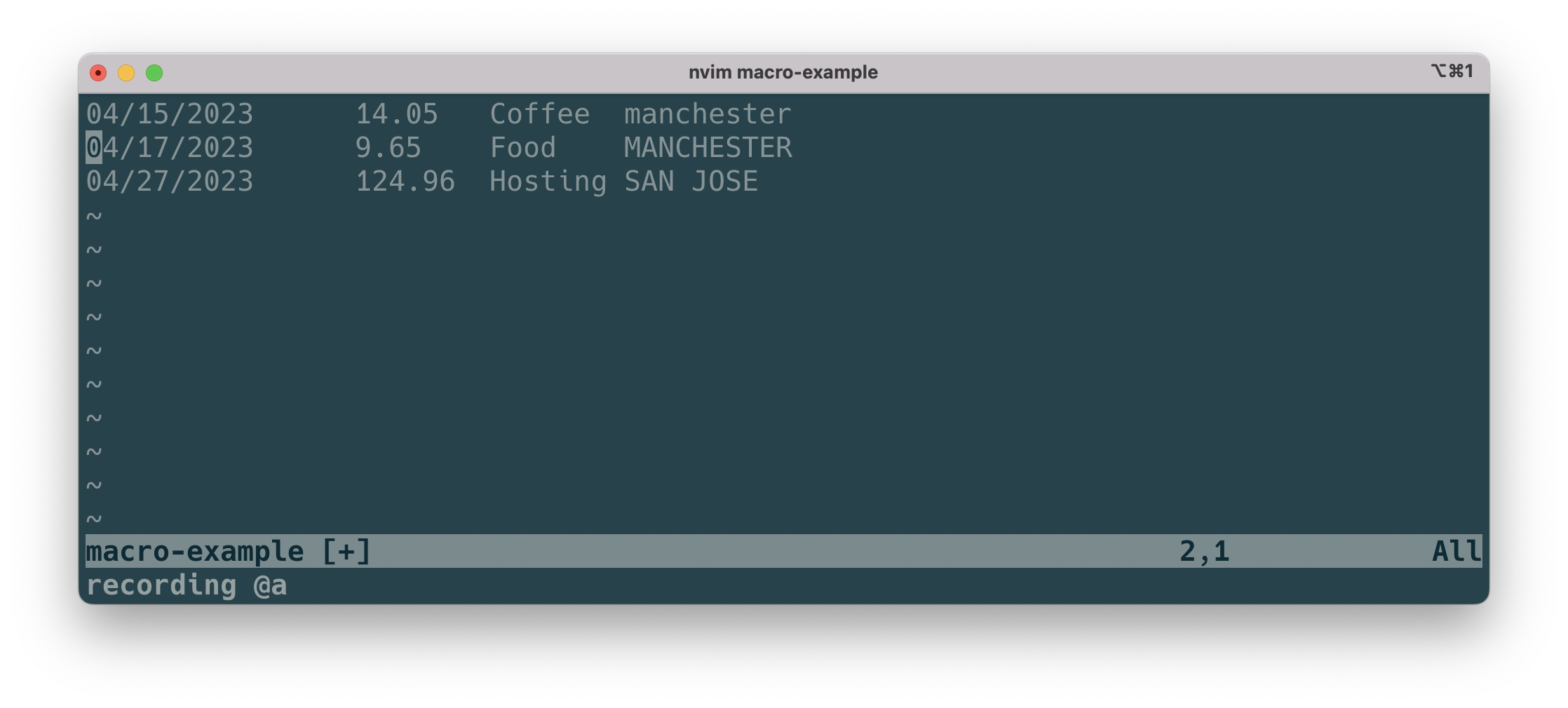
    Let’s say we have the following tab separated text1. Notice the last column, where all the cities are in capital letters:

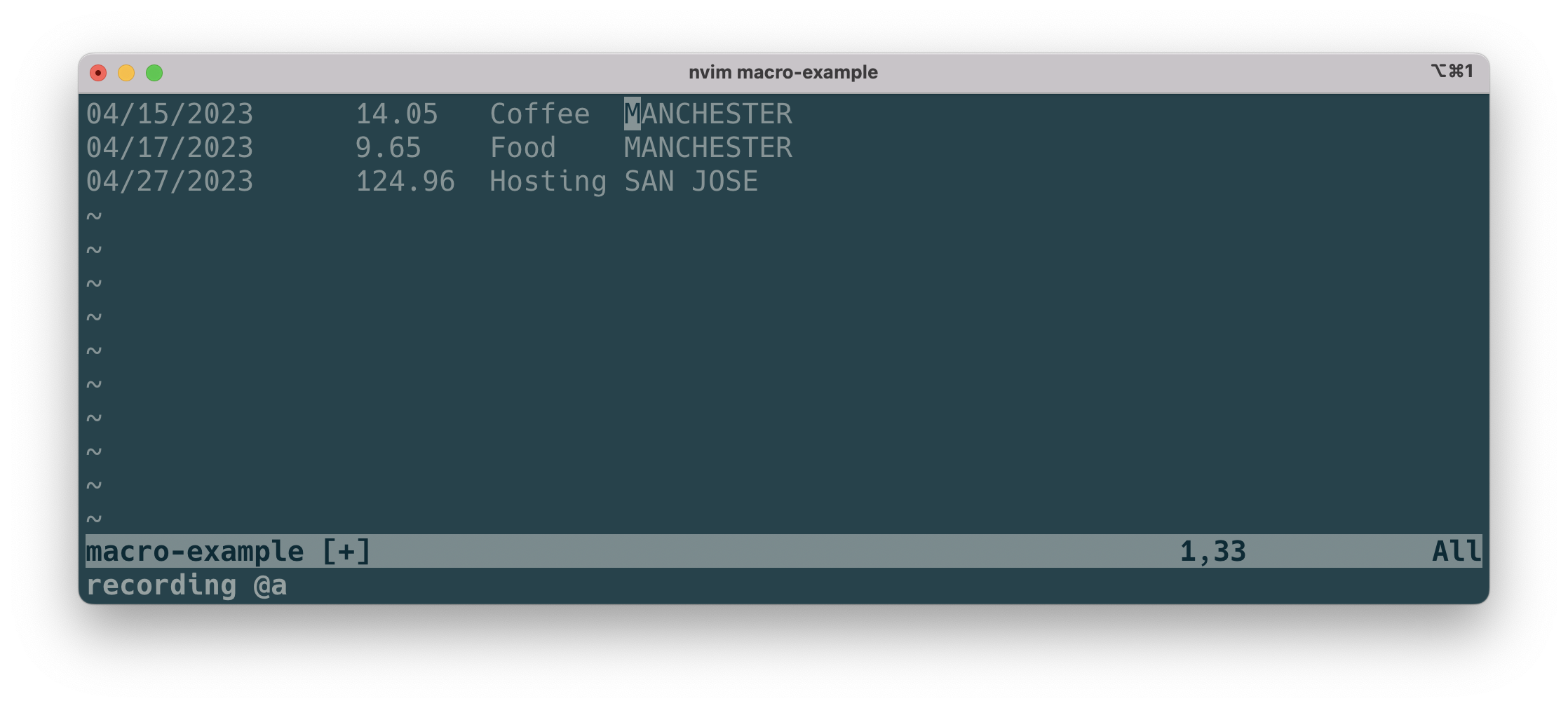
    04/15/2023      14.05   Coffee  MANCHESTER
    04/17/2023      9.65    Food    MANCHESTER
    04/27/2023      124.96  Hosting SAN JOSE

    We’ll create a macro to change the case for the last column, which is city.

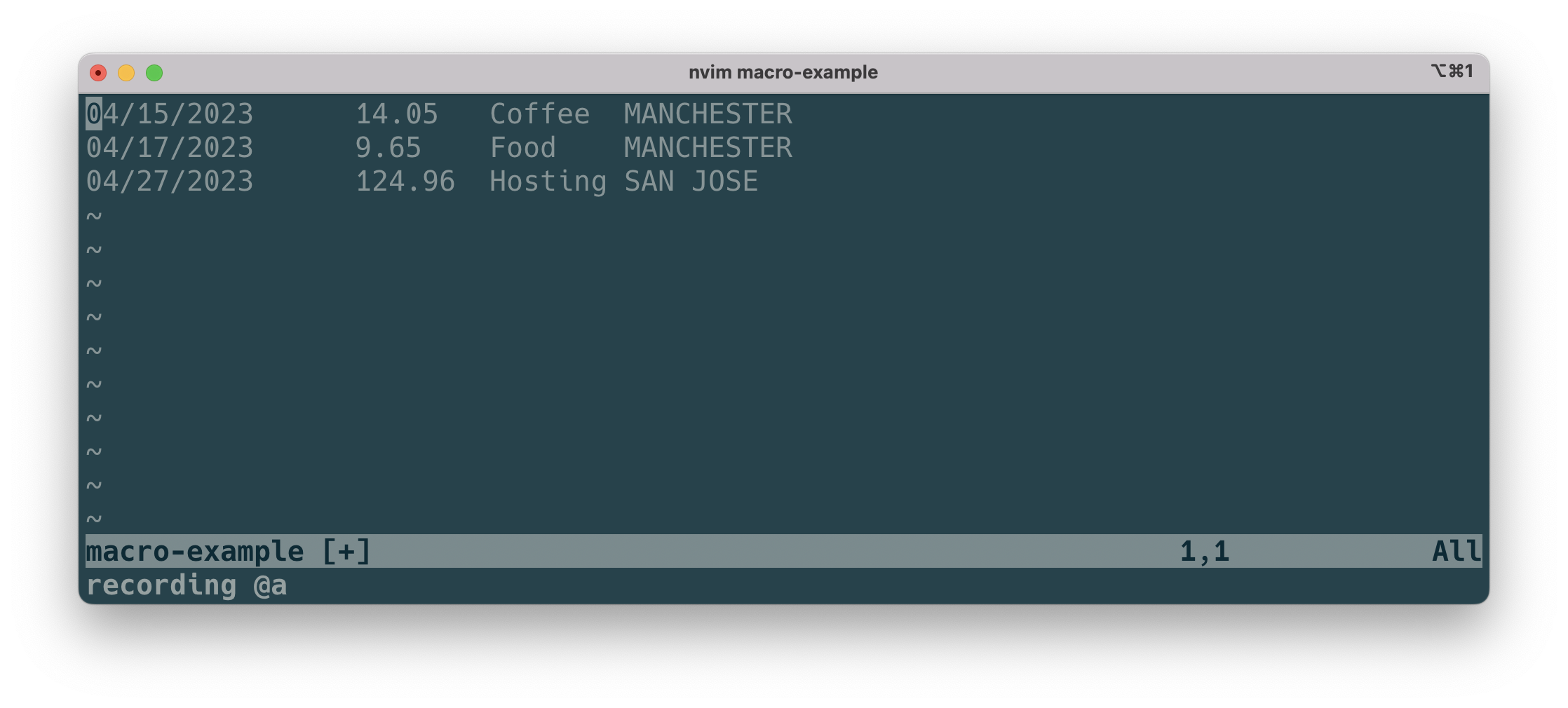
    1. First, start recording a macro by pressing q then a to store our macro in a:
      press q to start recording a macro
    2. Next, press W 3 times, or type 3W to move the cursor to the start of the last column.
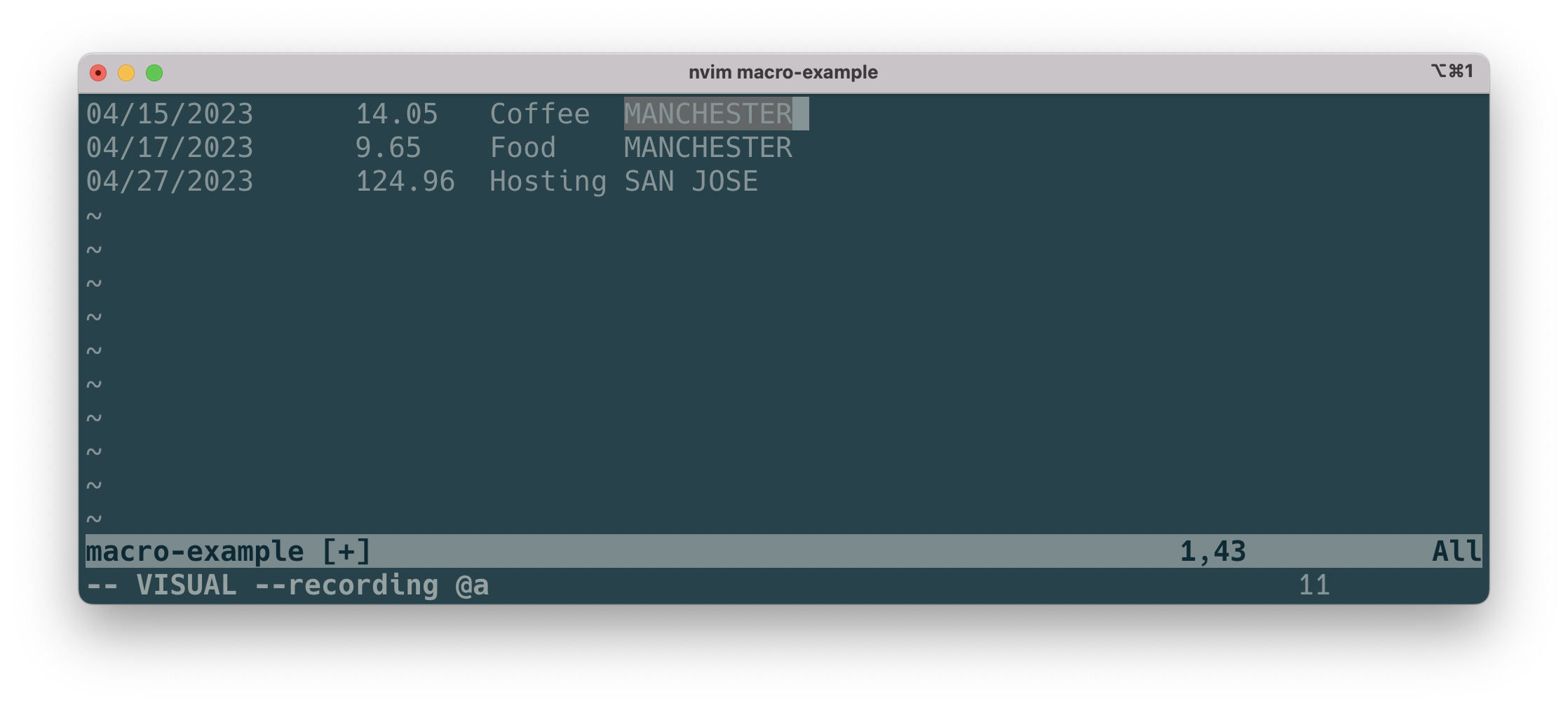
    3. Then, press v to enter visual mode. Then type $ to select to the end of the line.
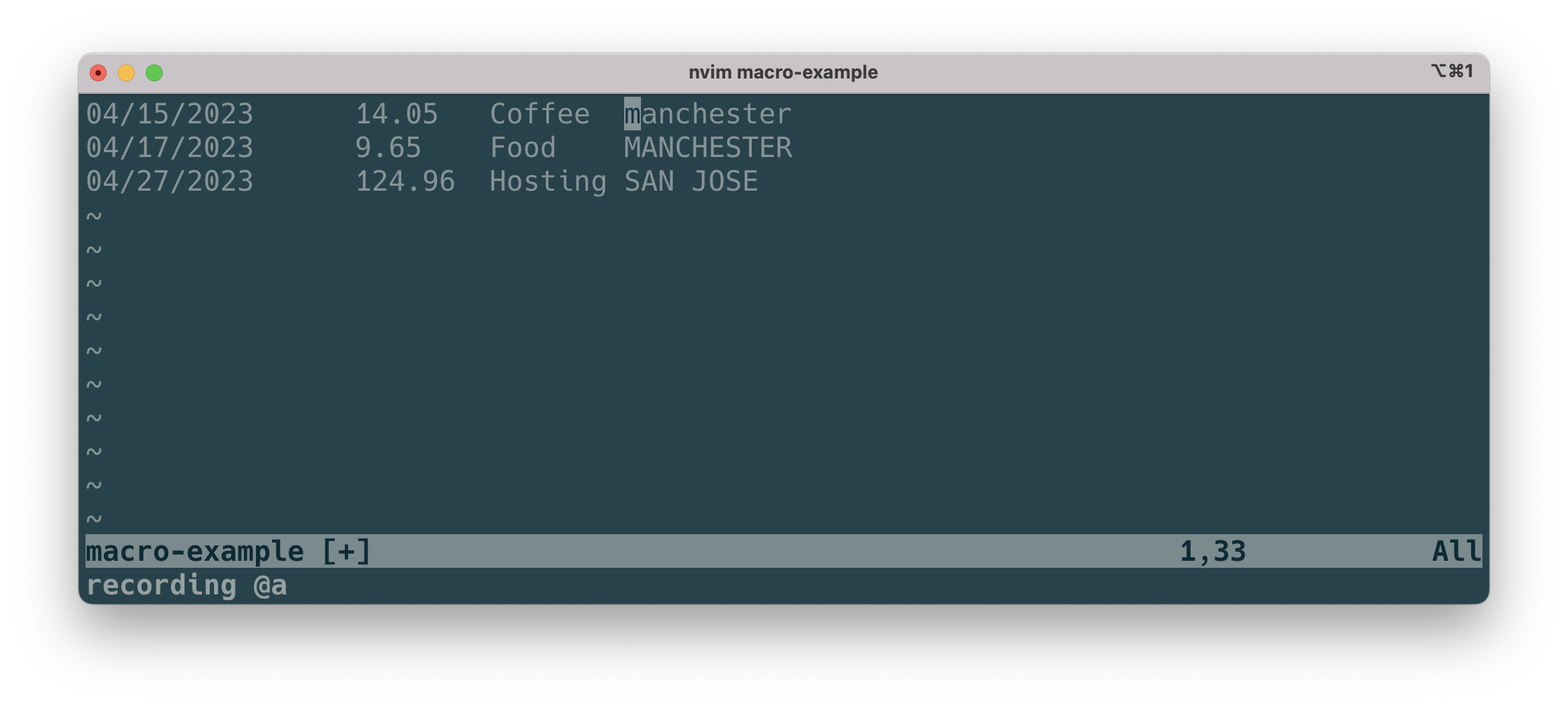
    4. Next, press ~ (tilda) to change case.
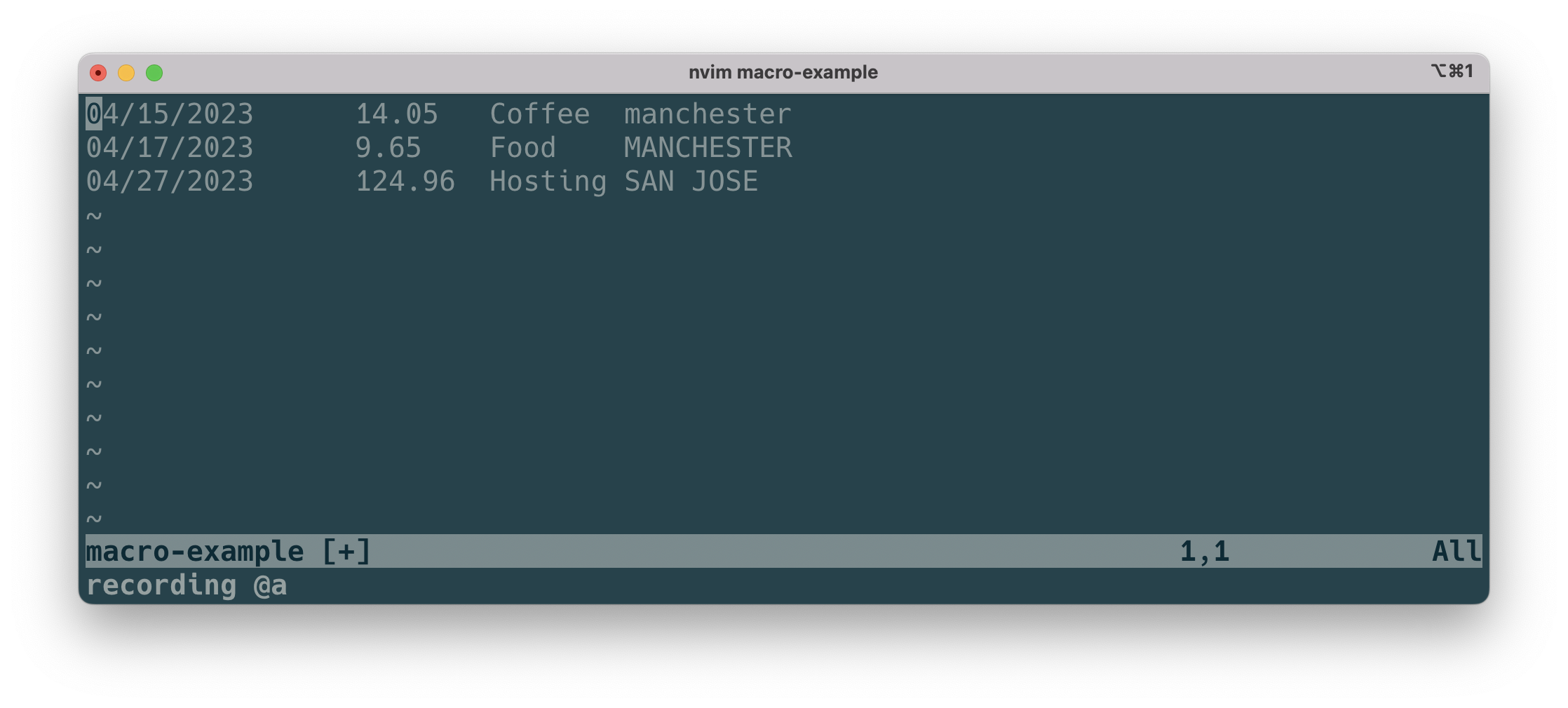
    5. Press 0 to return to the start of the row.
    6. Then, press j to move to the next line. Finally, stop recording the macro by pressing q again.
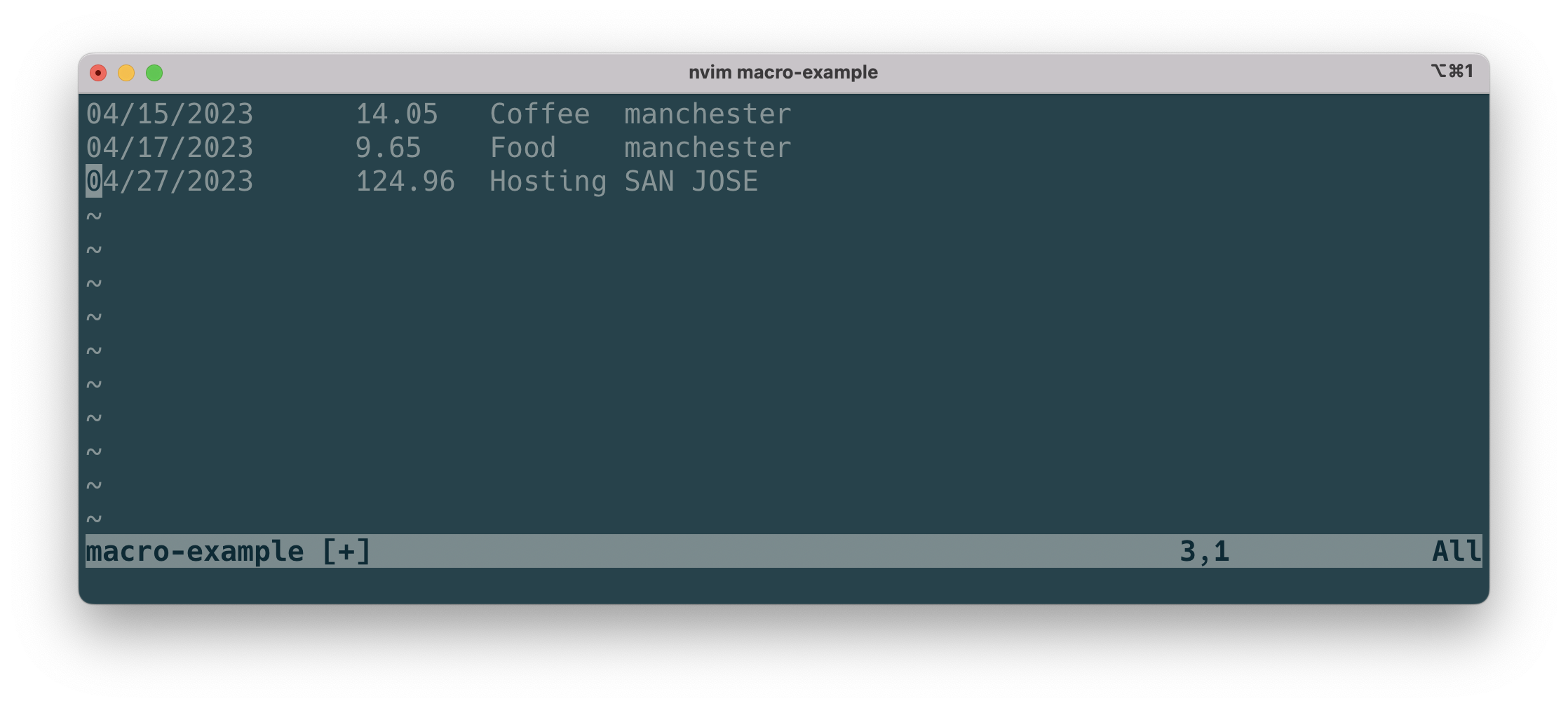
    7. The macro is now stored in a. Press @a to rerun the macro. Notice how it changes case and puts you on the next line.
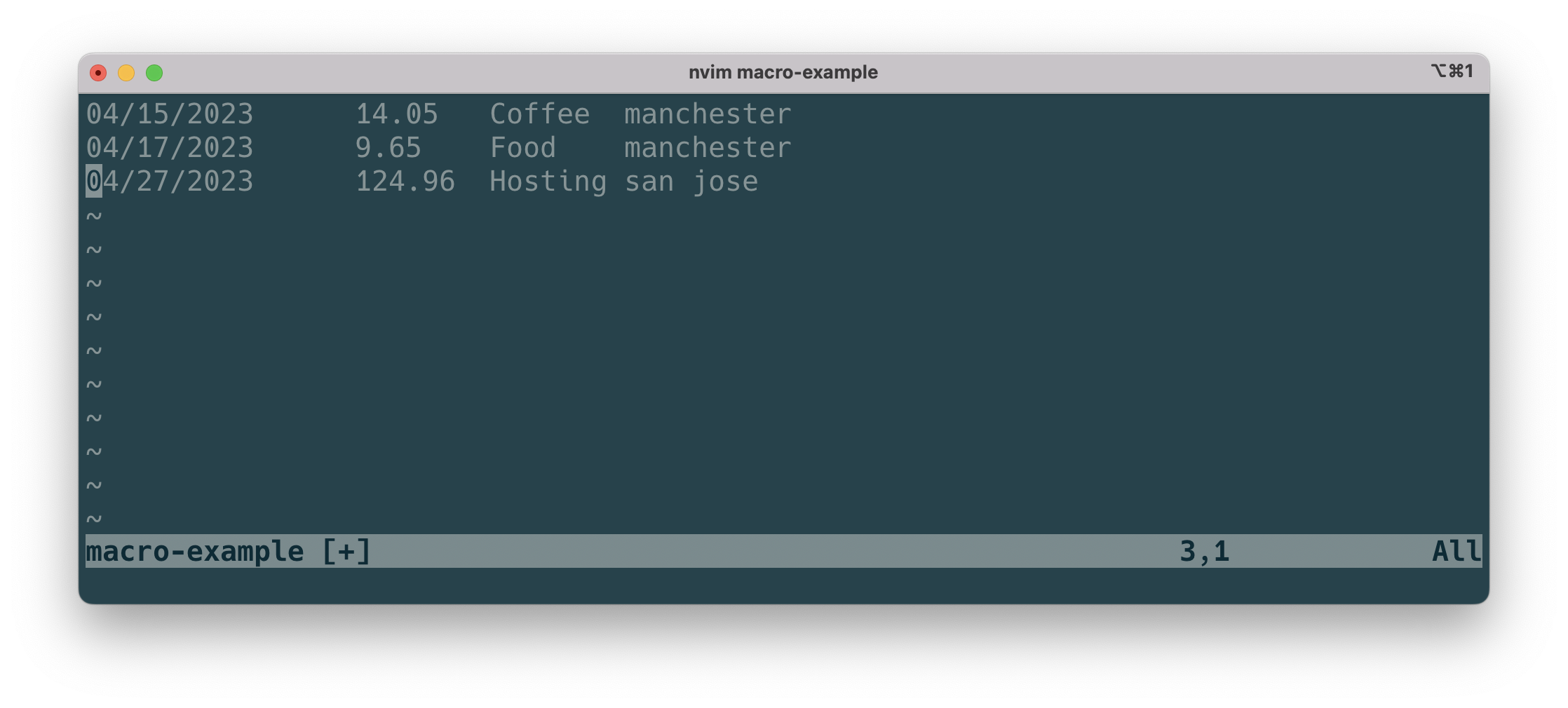
    8. Press @a to run once more to complete the file.

    1. From a credit card statement ↩︎
  • Getting to Black Belt in Vim – Part 6 – Black Belt

    Welcome to our final chapter. We made it! Previously, at blue belt level, we covered text-objects. At black belt level, we’ll cover search/replace, macros and window commands. Finally, we’ll explore topics to take you beyond black belt.

    Search & Replace

    To replace everything on the current line, type:

    :s/<search term>/<replace term>/g

    where the <search term> is what we want to find, and <replace term> is the substitution.

    In addition, if we want to search the whole file, we can specify a range of %, which is a shortcut for the whole file:

    %s:/<search term>/<replace term>/g

    The g at the end stands for global, which means all occurrences.

    Macros

    Macros can help you automate editing that you need to apply to a large area. Specifically, they record any keystrokes and motions you make. Then, you can repeat that whenever you need to. You can use pretty much everything you’ve learnt so far to record your macro.

    Here are the sequence of commands:

    • Type q, followed any letter to start recording that macro.
    • Next, type the sequence of commands you’d like to automate.
    • Finally, press q again to stop recording.
    • To replay you macro, type @ followed by the letter you used to store the macro in.

    For an example of how to use a macro, see this article.

    Window Splits

    Sometimes it’s useful look at different content at the same time. Here’s how to split windows:

    • <Ctrl> + w, then v for vertical split, or s for (horizontal) split
      • Once split, you can move between windows using h, j k or l:
        • <Ctrl> + w, h to move left.
        • <Ctrl> + w, l to move right.
        • <Ctrl> + w, j to move down.
        • <Ctrl> + w, k to move up.
      • <Ctrl> + w, c to close the window you’re in.
      • <Ctrl> + w, o to close all windows except the one you’re in.

    Once you’ve split a window, you can use e: <filename> to edit that file.

    Scrolling

    • zz – scrolls the screen so the cursor is in the centre.
    • zt – scroll so the cursor is at the top.
    • zb – scroll so the cursor ends up at the bottom.

    Beyond Black Belt

    At this point, you should be pretty quick at navigating your way around a file, making precision edits. However, we’ve only just scratched the surface of what Vim can do. Here are some topics you can explore to increase your productivity:

    • Marks
    • Tags
    • Folding
    • Files
    • Tabs
    • Buffers
    • Undo Tree
    • Vim Script
    • Keymapping

    Getting Help in Vim

    Getting help on a command is easy, type :help followed by the command you want to learn more about.

  • Getting to Black Belt in Vim – Part 5 – Red Belt

    At blue belt level, we covered visual mode and advanced motions. At red belt level, we’ll introduce a powerful new concept. If you’re a developer, they’re a game changer – you can transform text in a few keystrokes. Let’s learn more.

    Red Belt

    Text Objects

    Text objects are a sequence of commands, that let you edit text very quickly. They do this by allowing you to select the whole object regardless of where the cursor is. They’re different to motions, as motions start from where the cursor is.

    Text objects start with either i, which stands for inner, or a, which stands for a or around. i doesn’t include whitespace or punctuation, whereas a does.

    We use them with operators such as (y) yank, (c) change or (d) delete. They take the format:

    <operator> + <text-object>

    Using Text Objects

    Let’s look at some common text objects, followed by examples of how they’re used with operators:

    • iw – inner word, not including white space or punctuation. Here are some examples:
      • ciw – change inner word. Will put you in insert mode, ready for new text.
      • diw – delete inner word.
      • yiw – yank (copy) inner word.
      • viw – visualise (highlight) inner word:
    Highlighting a word using viw. Notice how it only selects the word and not the whitespace after.
    • aw – a word, includes white space and punctuation after the word. For example:
      • daw – delete a word.
      • caw – change a word. Will put you in insert mode to change text.
      • vaw – visualise (highlight) around word:
    Highlighting a word using vaw. See how it captures the whitespace after the word.
    • i” – inside speech marks. For example, with the visual operator:
      • vi” – visualise (highlight) everything inside the “ (speech marks):
    Highlighting speech marks in a sentence using vi”.
    • a” – around and including speech marks. For example, using with the change operator:
      • ca” – change around and including the “ (speech marks). Not that this puts you in insert mode.
    • ib – inside bracket. For example:
      • vib – visualise (highlight) everything inside the brackets.
    • ab – inner bracket and around bracket. Useful when working with text inside brackets:
      • cab – change around bracket, works for ( ).
    • it – inner tag. Useful for HTML / XML elements, for example:
      • cit – change inner tag, works with any type of <tag>.
    • at – inner tag and around tag. Useful for HTML / XML elements:
      • vat – visualise (highlight) around tag.

    Using Operators with Motions

    • We covered motions previously, and here are more examples of how you can use them with operators:
      • yt( – yank (copy) until you reach the first (.
      • df, – delete up to and including the first , (comma).

    More Useful Commands

    • j – join, useful when want to join two split lines.
    • * (asterisk) – search for next occurrence of word under cursor. You can search for the previous occurrence using the hash key.
    • R to enter replace mode. Now everything you type overwrites existing text. <Esc> to exit replace mode.
    • r to replace one character only.

    We’re almost there! In the next section, we’ll get to black belt level.