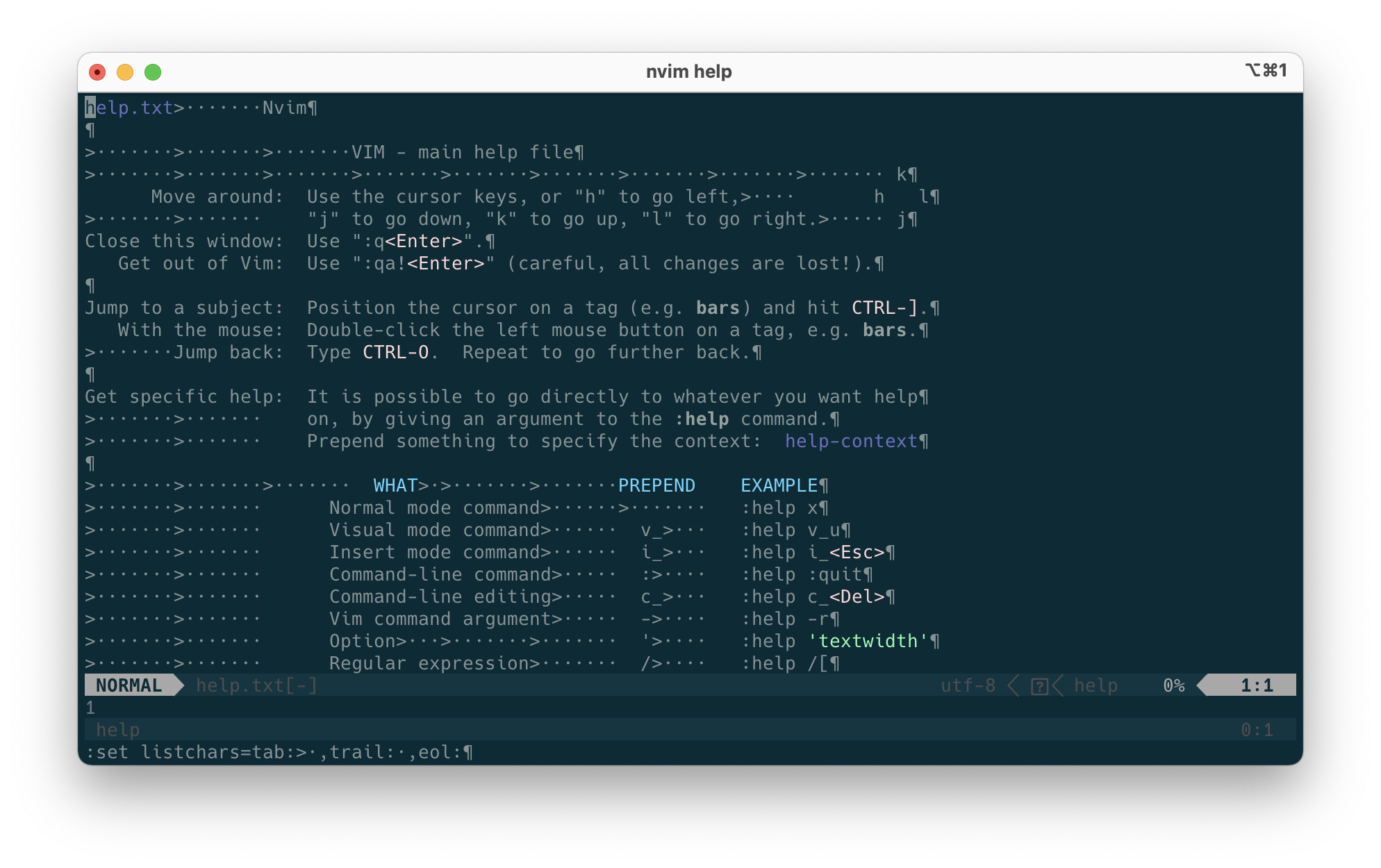
When working with files, it’s often useful to see special characters such as tabs or end of line (EOL) characters. Let’s see how we can do this in Vim.
First, once we’ve opened a file in Vim, type the following:
:set list
This allows us to enable list mode, which shows tabs as ^I and end of lines as $.
Next, we can choose how we render the special characters. For our example, let’s render tabs as >·, trailing spaces as · and end of lines as ¶:
:set listchars=tab:>·,trail:·,eol:
Finally, when finished, let’s hide the special characters:
When writing an Angular component, we often want to test our component changes it’s HTML template as expected.
To detect changes made to a single element, we can use CSS to query the DOM. In the example below, we’re checking for a span element with an active class:
// Trigger changes
component.keyboardCharacters = ['A'];
fixture.detectChanges();

// Assert on changes
const active = fixture.debugElement.query(By.css('span.active'));
expect(active.nativeElement.textContent).toEqual(' A ');
However, on some occasions, we may want to check that our CSS selector matches multiple elements:
// Trigger changes
component.keyboardCharacters = ['J', 'K'];
fixture.detectChanges();

// Assert on first matching element
const active1 = fixture.debugElement.queryAll(By.css('span.active'))[0];
expect(active1.nativeElement.textContent).toEqual(' J ');

// Assert on second matching element
const active2 = fixture.debugElement.queryAll(By.css('span.active'))[1];
expect(active2.nativeElement.textContent).toEqual(' K ');
In the example above, we use fixture.debugElement.queryAll, which returns an array of matching elements. We can then pick out the element we’re after specifying an array index.
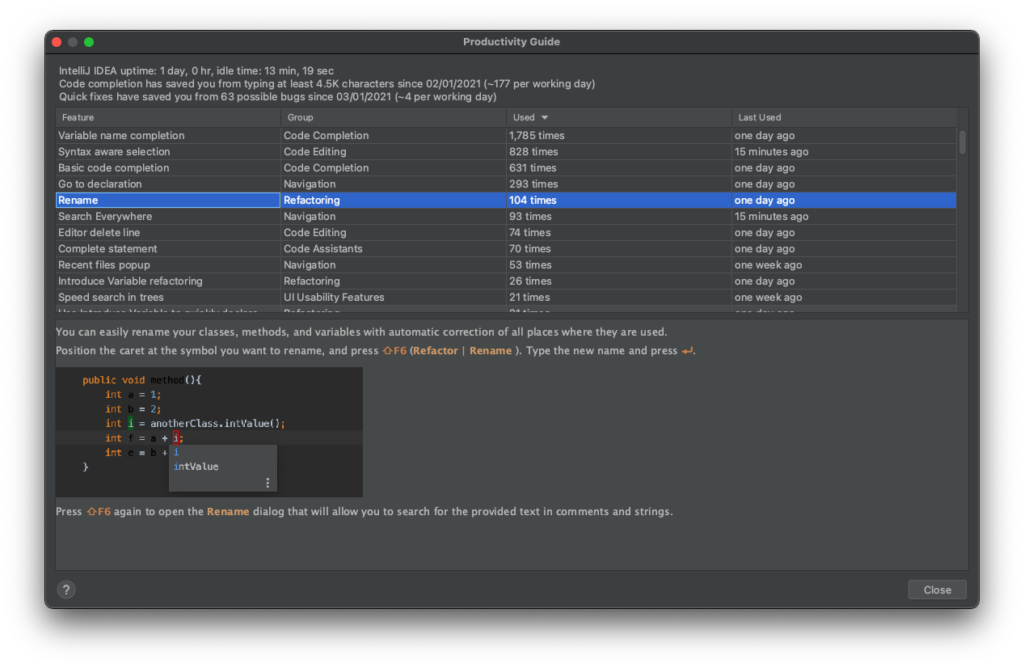
Learning IntelliJ (or other IDE) shortcuts can make us more productive developers. In this post, I’ll highlight my top 10 IntelliJ shortcuts, which I found using the productivity guide:
Go to ‘Help’ > ‘Productivity Guide’ in IntelliJ
10. File Structure Popup
⌘F12 or Ctrl + F12
Shows you the structure of a class with methods and properties – handy when looking at a large class. Also, you can search by typing in the popup.
9. Go to implementation(s)
⌥⌘B or Ctrl + Alt + B
Go to the implementation of the method or property under the cursor. Equivalent of holding ⌘ or Ctrl + clicking using a mouse.
8. Comment / uncomment with line comment
⌘/ or Ctrl + /
Comment out a whole line or selected block.
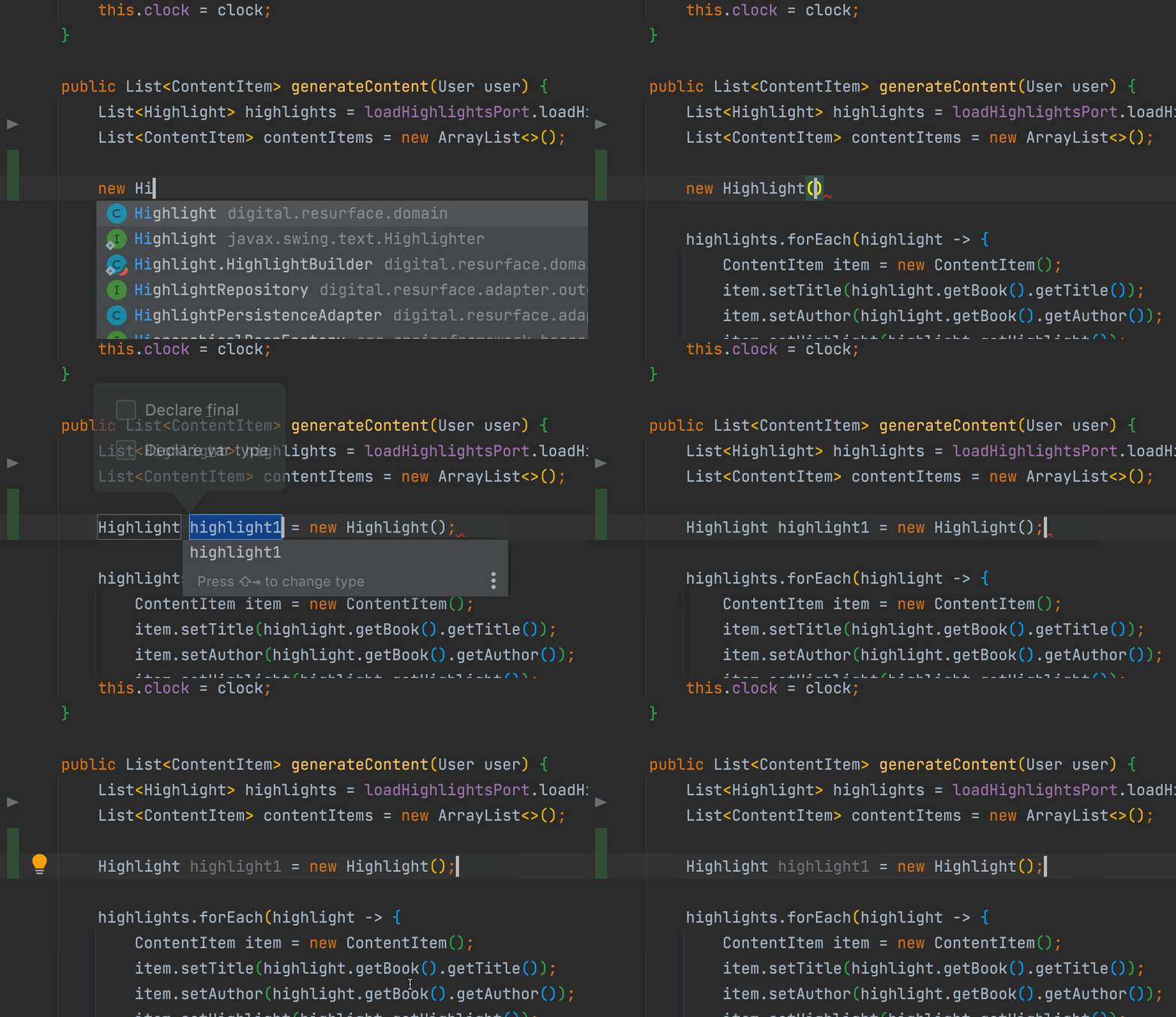
7. Extract variable
⌥⌘V or Ctrl + Alt + V
Create a variable from a highlighted snippet automatically. This is useful when creating a new variable too:
Using ‘Extract variable’ to create a new variable
6. Recent files popup
⌘E or Ctrl + E
Shows the files you’ve recently worked on.
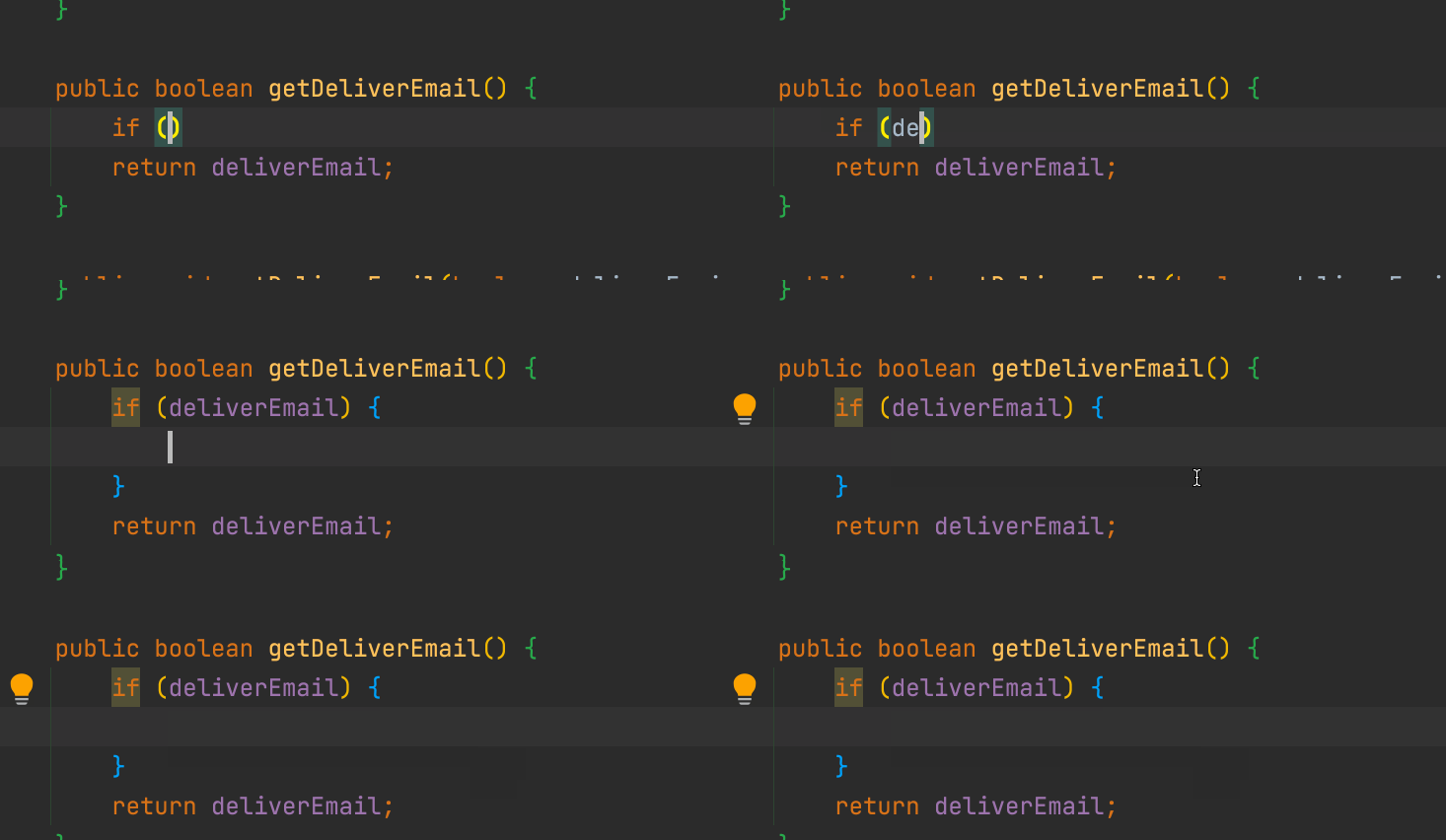
5. Complete statement
⇧⌘⏎ or Ctrl + Shift + Enter
My favourite shortcut! Start typing and IntelliJ will try to complete the structure around you. For example, if you’re typing an ‘if’ statement, you can easily add the surrounding braces:
Using ‘Complete Statement’ on an ‘if’ statement
4. Delete whole line
⌘⌫
Rather than deleting individual characters, this is useful if you want to get rid of the whole line.
3. Search Everywhere
Double ⇧ or Double Shift
A good place to start when looking for a class name, a method name, an action or even a setting.
2. Rename
⇧F6 or Shift + F6
As developers, we want our code to be as readable as possible. That means deciding a variable name can take a few attempts. This shortcut makes it easy.
1. Extend / Shrink Selection
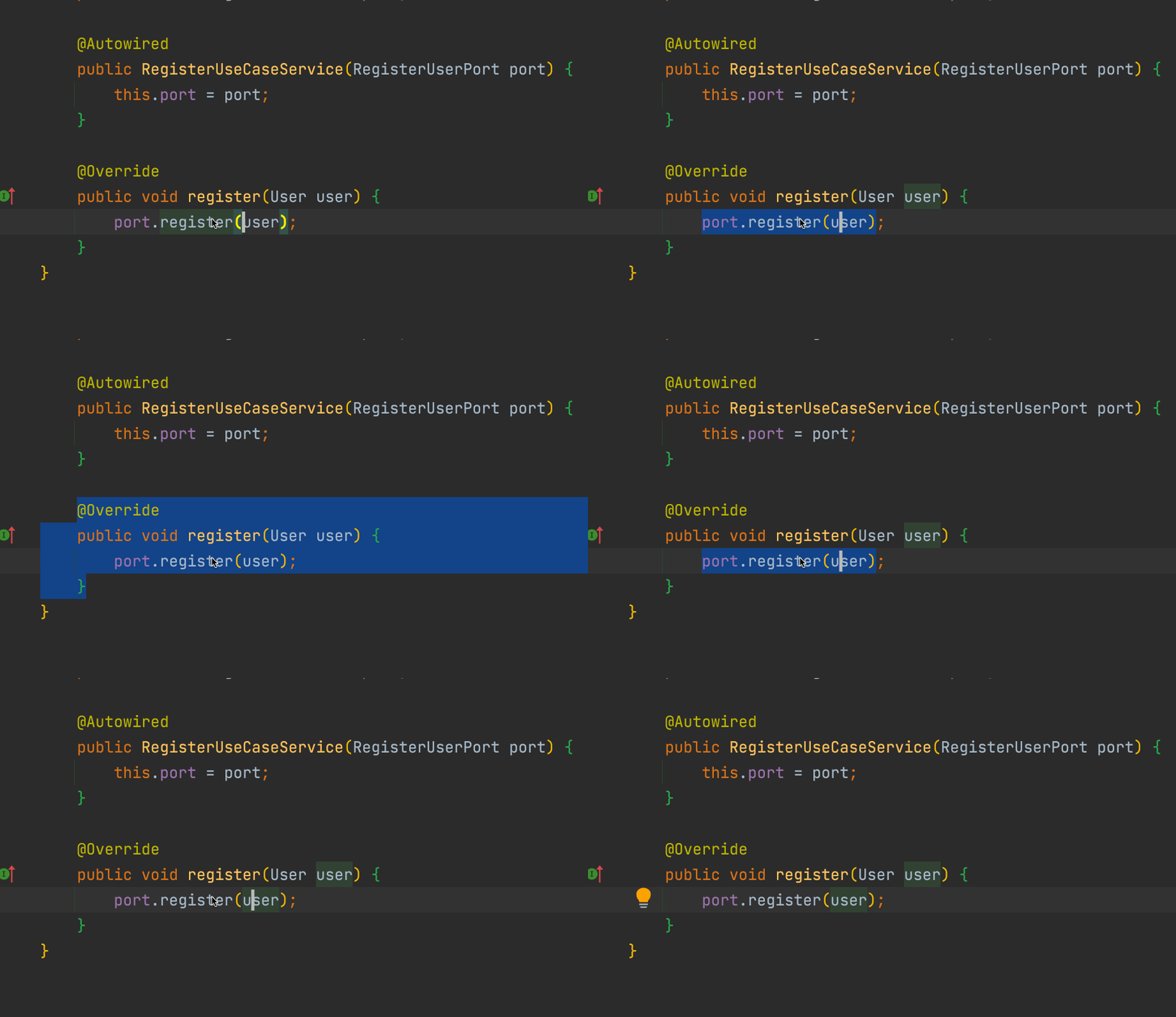
⌥↑ / ⌥↓ or Ctrl + W / Ctrl + Shift + W
This is so handy, it should be part of the OS for any text selection:
Bonus – Find Action
⌘⇧A or Ctrl + Shift + A
Again, a really useful shortcut to find pretty much anything in the IDE – creating a new branch, stashing current changes etc.
On a typical day, you might be working on multiple things at once. You could be working on a story, helping with a support task or preparing a presentation. If you’re anything like me, these things take up lots of tabs in your browser.
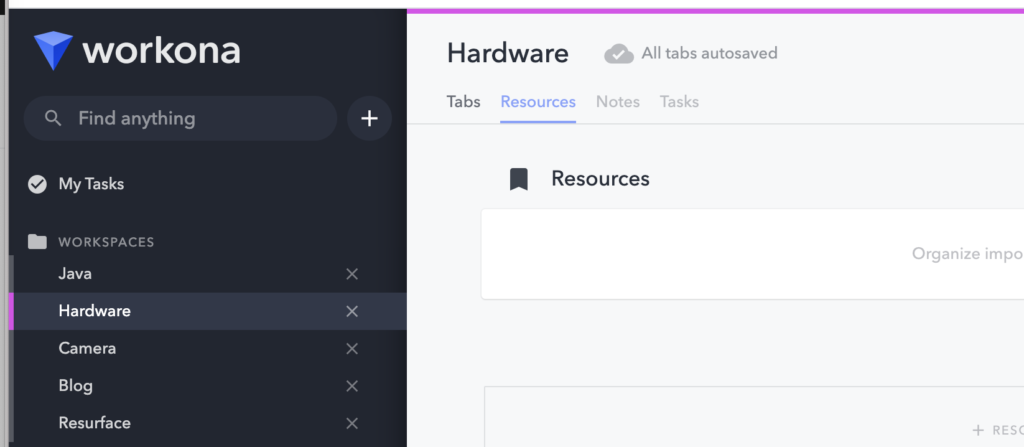
The idea is that you can organise your tasks into workspaces. Then, you can assign tabs to those workspaces. When you open up a particular workspace, it only shows the tabs for that workspace and keeps the rest hidden away.
Switching between workspaces in Workona
I’ve been using it for about a month now and it’s greatly improved my productivity. I feel more organised too. Sure, it takes a bit more effort to create workspaces and assign tabs, but it pays off. I can easily switch context between tasks, without having to hunt for bookmarks. The best part is that it saves your tabs in the cloud, so you can pickup where you left off on another machine. Check it out here.
We use cookies on our website to give you the most relevant experience by remembering your preferences and repeat visits. By clicking “Accept All”, you consent to the use of ALL the cookies. However, you may visit "Cookie Settings" to provide a controlled consent.
This website uses cookies to improve your experience while you navigate through the website. Out of these, the cookies that are categorized as necessary are stored on your browser as they are essential for the working of basic functionalities of the website. We also use third-party cookies that help us analyze and understand how you use this website. These cookies will be stored in your browser only with your consent. You also have the option to opt-out of these cookies. But opting out of some of these cookies may affect your browsing experience.
Necessary cookies are absolutely essential for the website to function properly. These cookies ensure basic functionalities and security features of the website, anonymously.
Cookie
Duration
Description
cookielawinfo-checkbox-analytics
11 months
This cookie is set by GDPR Cookie Consent plugin. The cookie is used to store the user consent for the cookies in the category "Analytics".
cookielawinfo-checkbox-functional
11 months
The cookie is set by GDPR cookie consent to record the user consent for the cookies in the category "Functional".
cookielawinfo-checkbox-necessary
11 months
This cookie is set by GDPR Cookie Consent plugin. The cookies is used to store the user consent for the cookies in the category "Necessary".
cookielawinfo-checkbox-others
11 months
This cookie is set by GDPR Cookie Consent plugin. The cookie is used to store the user consent for the cookies in the category "Other.
cookielawinfo-checkbox-performance
11 months
This cookie is set by GDPR Cookie Consent plugin. The cookie is used to store the user consent for the cookies in the category "Performance".
viewed_cookie_policy
11 months
The cookie is set by the GDPR Cookie Consent plugin and is used to store whether or not user has consented to the use of cookies. It does not store any personal data.
Functional cookies help to perform certain functionalities like sharing the content of the website on social media platforms, collect feedbacks, and other third-party features.
Performance cookies are used to understand and analyze the key performance indexes of the website which helps in delivering a better user experience for the visitors.
Analytical cookies are used to understand how visitors interact with the website. These cookies help provide information on metrics the number of visitors, bounce rate, traffic source, etc.
Advertisement cookies are used to provide visitors with relevant ads and marketing campaigns. These cookies track visitors across websites and collect information to provide customized ads.