Here’s a quick guide on how I use Vim on a day to day basis as a developer. First, we’ll go through some settings, then we’ll cover apps I use the most often. These days, I write code mostly on a Mac, so feel free to substitute the shortcuts below as required. If you’re new to Vim, checkout my Vim tutorial.
Keyboard Settings
Set your key repeat rate to “high”. Useful when you want a command to repeat quickly, especially when using ‘h’, ‘j, ‘k’, ‘l’ to move about.
Remap the Keyboard
Map the Caps lock key to <Ctrl>. I’ve found this mapping really useful, as it keeps your hands on from the home row for <Ctrl> commands. Plus, when was the last time you used Caps Lock key?
Map the Right Command key to <Enter>. When your hands are on the home row, this makes it easy for your thumb to reach <Enter>. On any other OS, map <Enter> to whatever key is on the right side of <Space>.
Map h j k l to arrow keys, using a modifier key. When you’re used to Vim, nothings more annoying that trying to use h, j, k, l to move about in a non-Vim environment. On a Mac, you can use Karabiner Elements to add complex modifications.
Complex Modifications in Karabiner Elements
Vim in IntelliJ
In IntelliJ, go to the plugins marketplace (Settings -> Plugins -> Marketplace) and search for IdeaVim.
Vim in VSCode
In VSCode, go to the plugins section and download VSCodeVim.
Vim in the Browser
In Chrome, there’s a choice of extensions that help you navigate pages using Vim key bindings. I’m currently using Vimium. In Safari, you can download Vimari from the App Store.
Uncommon Shortcuts
Here are some shortcuts that are maybe not as well known, but really useful. They all work really well when <Ctrl> is assigned to Caps Lock, as mentioned above. This means you don’t have to leave your home row when running them:
Backspace using <Ctrl> + h. This works in MacOS in non Vim environments too.
Getting back to normal mode using <Ctrl> + [.
IntelliJ Specific Shortcuts
I tend to use these quite a bit in IntelliJ:
Splitting Windows. <Ctrl> + w, then v to split vertically, s to split horizontally. Then, <Ctrl> + w, followed by either h, j, k, or l to move between windows. More here.
Go to Project Window. Type Command + 1 to go to the project window. Then, you can move up and down the file list using the complex modification above, where you use h, j, k l with a modifier key.
Running tests using <Ctrl> + Shift + r. Non Vim keybinding, but really useful.
Show recent file list using Command + e. Go up and down the file list with the complex modification above with j and k.
Learning Vim is a challenge. There are a lot of keys to remember and Vim works in a different way to other editors. I had an idea about structuring a Vim tutorial like learning a martial art, where each milestone is represented by a belt colour. We start at white belt where we learn the foundations. As we progress, we end up at black belt where we’ll be whizzing around super quick, making edits along the way.
I wrote six separate articles to get to black belt, and in this article, I’ve summarised them all in on place.
Welcome to our final chapter. We made it! Previously, at blue belt level, we covered text-objects. At black belt level, we’ll cover search/replace, macros and window commands. Finally, we’ll explore topics to take you beyond black belt.
Search & Replace
To replace everything on the current line, type:
:s/<search term>/<replace term>/g
where the <search term> is what we want to find, and <replace term> is the substitution.
In addition, if we want to search the whole file, we can specify a range of %, which is a shortcut for the whole file:
%s:/<search term>/<replace term>/g
The g at the end stands for global, which means all occurrences.
Macros
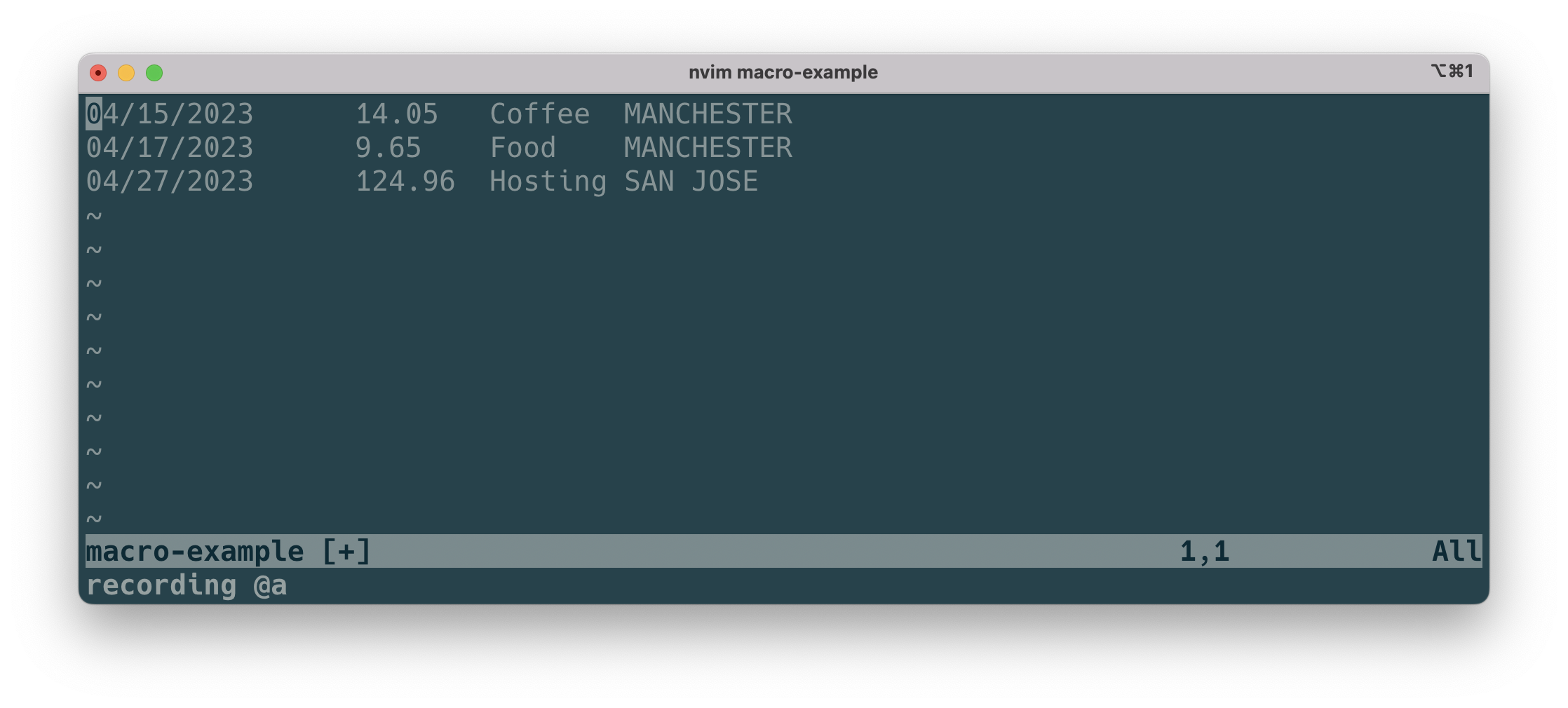
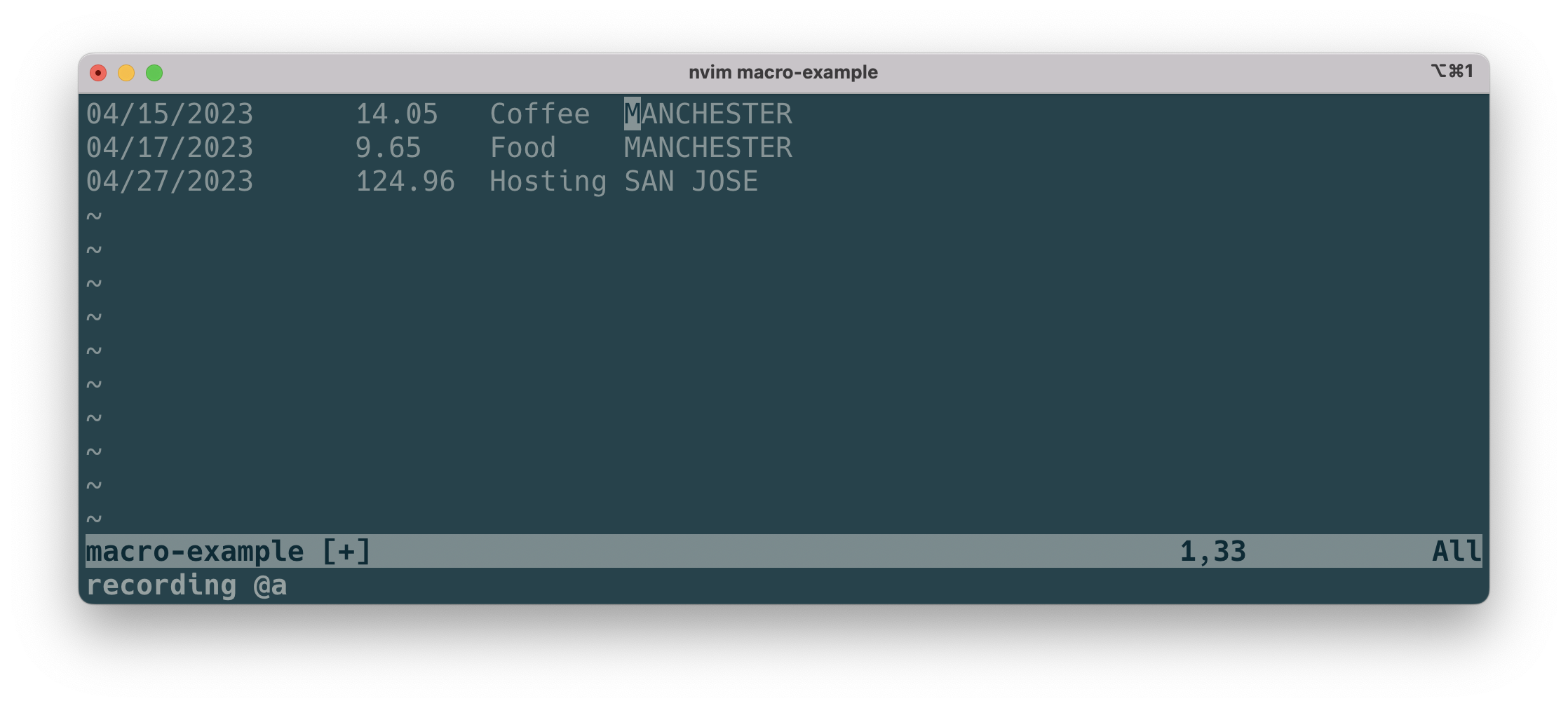
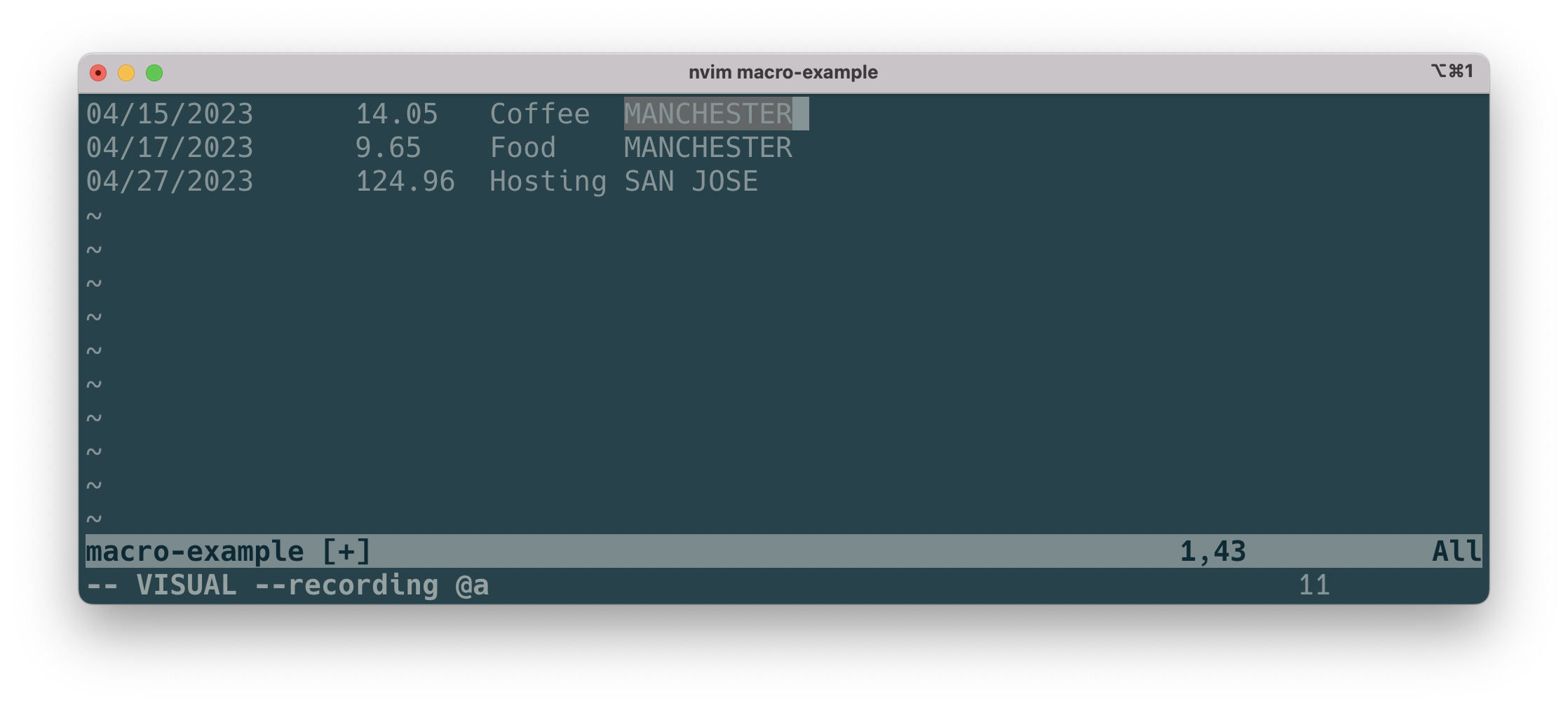
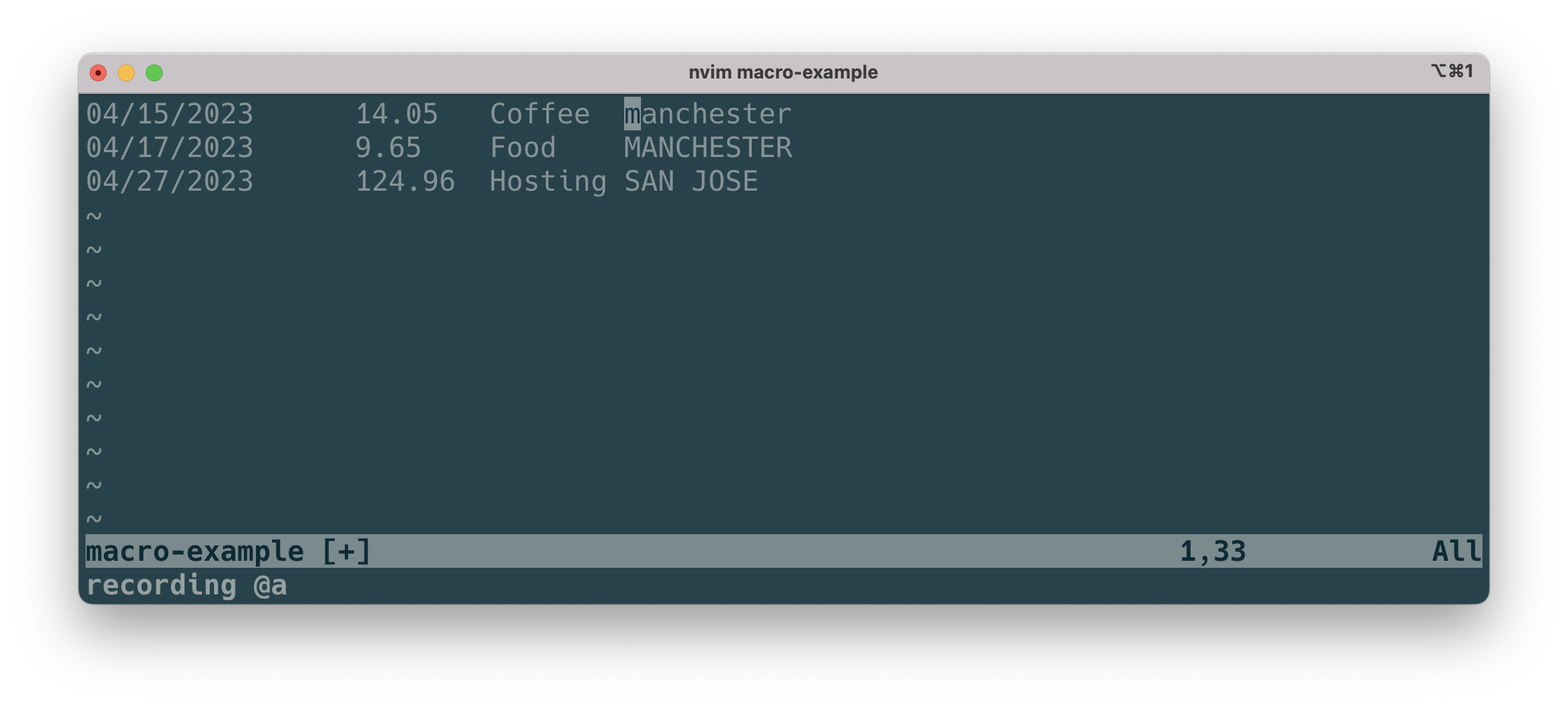
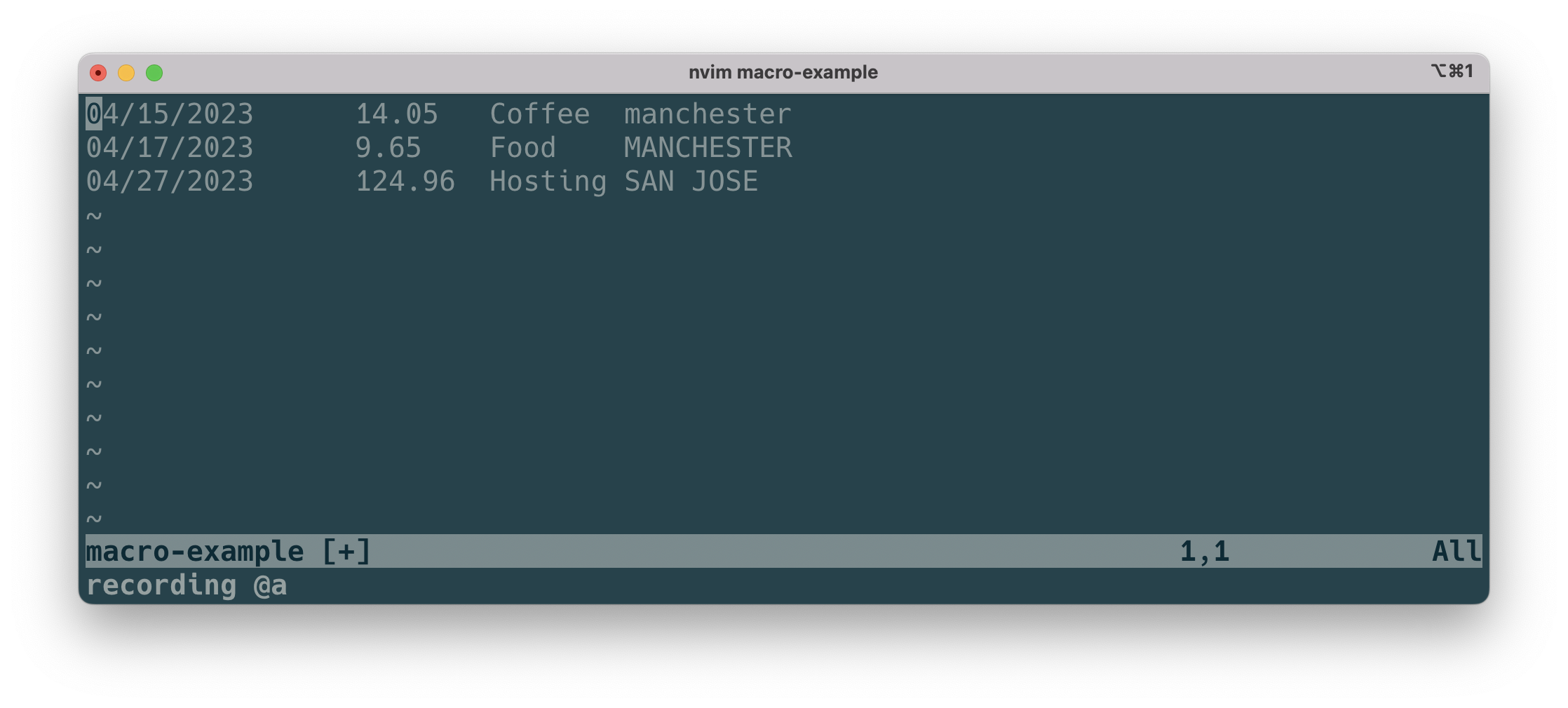
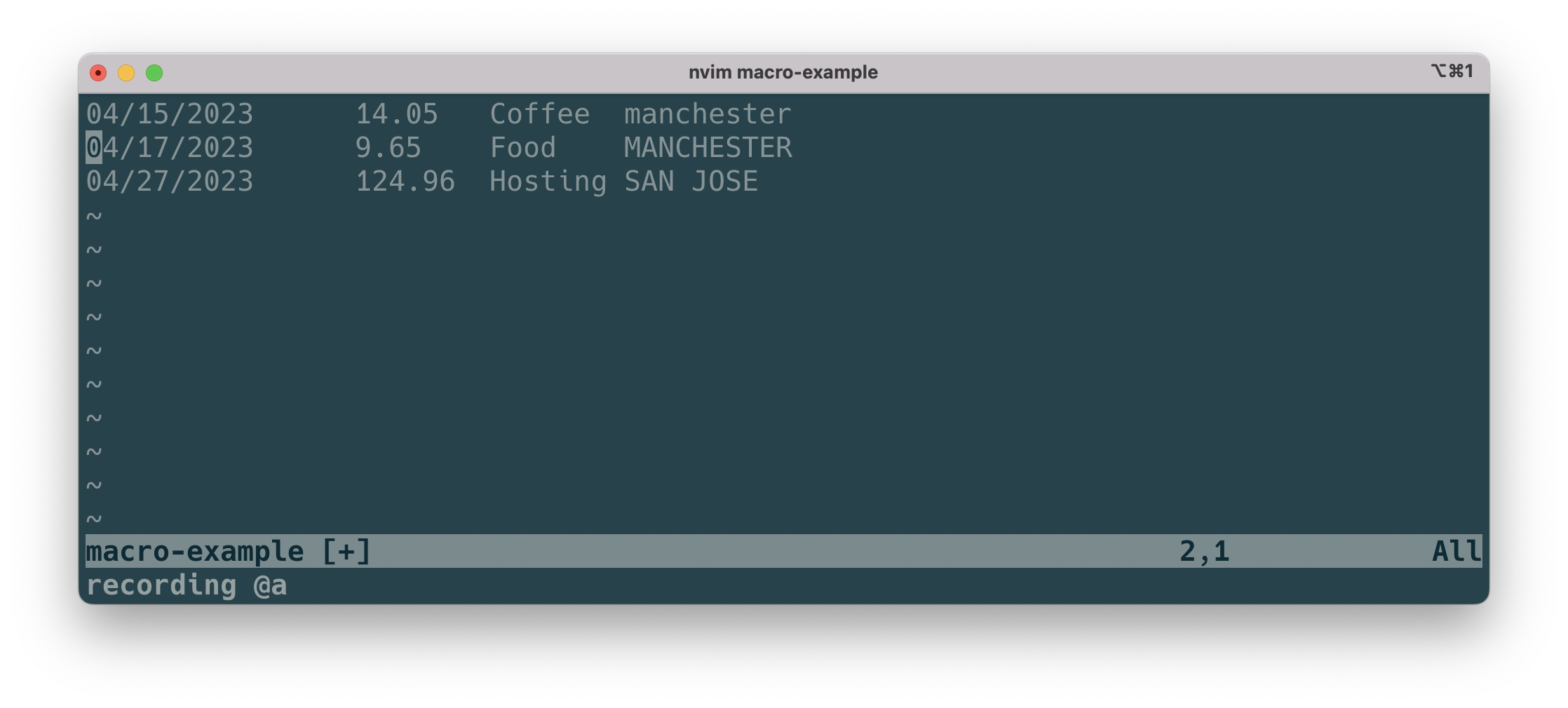
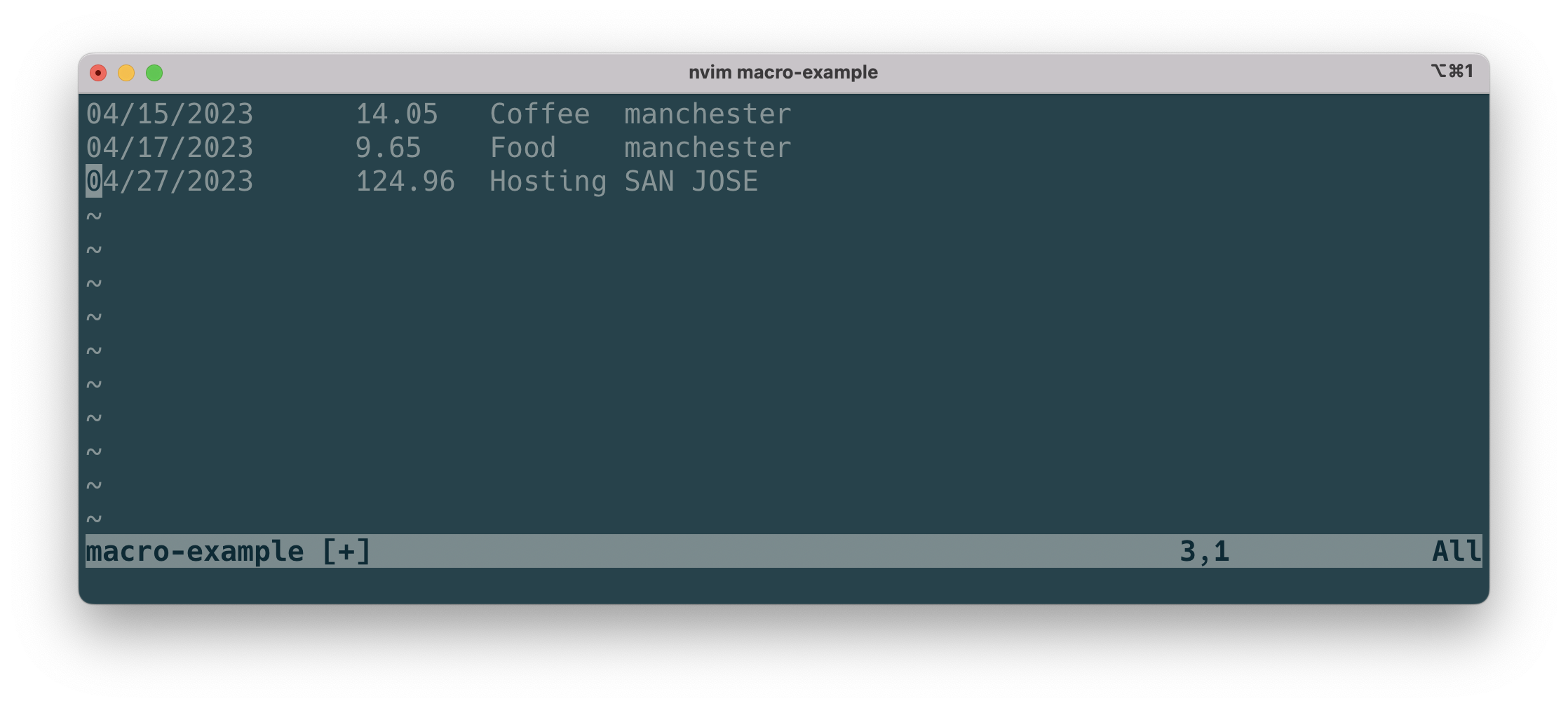
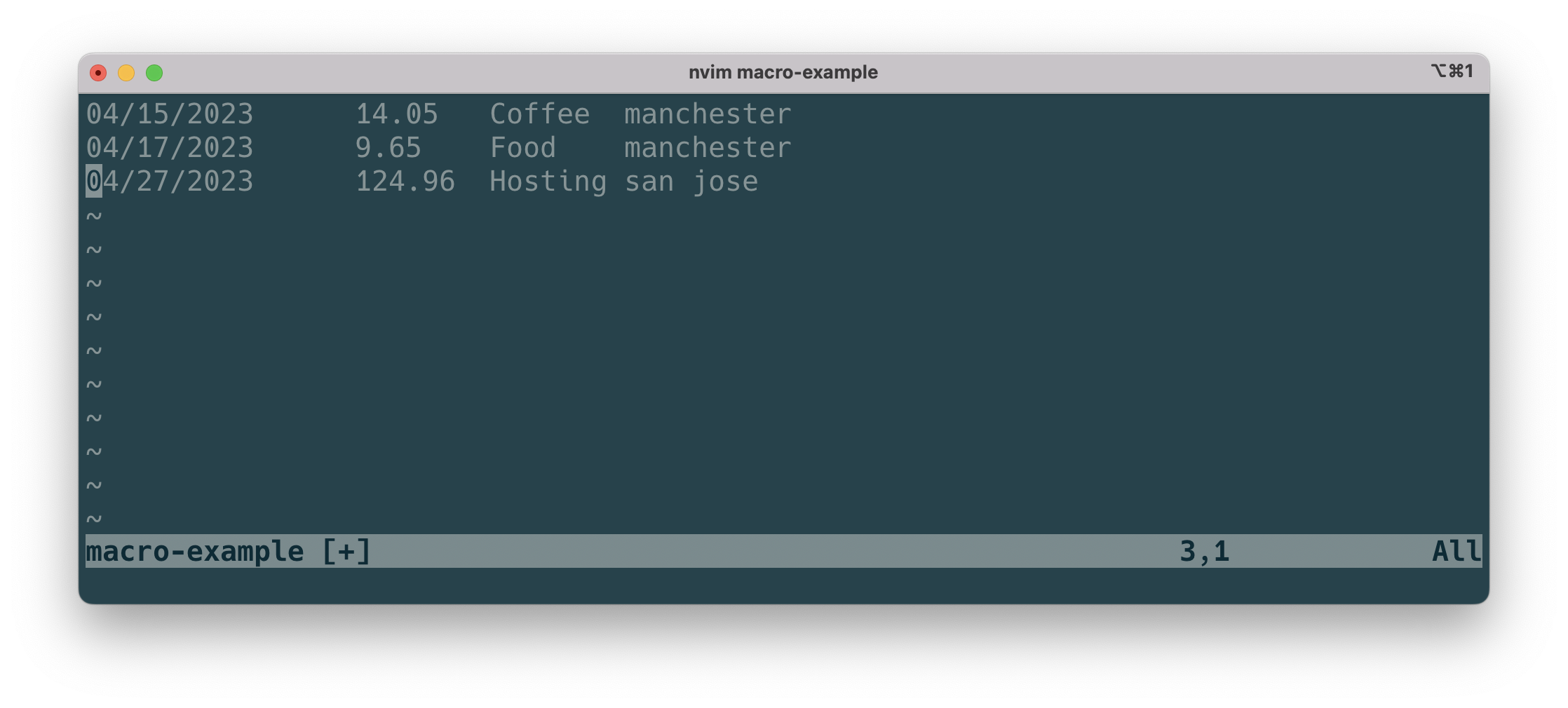
Macros can help you automate editing that you need to apply to a large area. Specifically, they record any keystrokes and motions you make. Then, you can repeat that whenever you need to. You can use pretty much everything you’ve learnt so far to record your macro.
Here are the sequence of commands:
Type q, followed any letter to start recording that macro.
Next, type the sequence of commands you’d like to automate.
Finally, press q again to stop recording.
To replay you macro, type @ followed by the letter you used to store the macro in.
Sometimes it’s useful look at different content at the same time. Here’s how to split windows:
<Ctrl> + w, then v for vertical split, or s for (horizontal) split
Once split, you can move between windows using h, jk or l:
<Ctrl> + w, h to move left.
<Ctrl> + w, l to move right.
<Ctrl> + w, j to move down.
<Ctrl> + w, k to move up.
<Ctrl> + w, c to close the window you’re in.
<Ctrl> + w, o to close all windows except the one you’re in.
Once you’ve split a window, you can use e: <filename> to edit that file.
Scrolling
zz – scrolls the screen so the cursor is in the centre.
zt – scroll so the cursor is at the top.
zb – scroll so the cursor ends up at the bottom.
Beyond Black Belt
At this point, you should be pretty quick at navigating your way around a file, making precision edits. However, we’ve only just scratched the surface of what Vim can do. Here are some topics you can explore to increase your productivity:
Marks
Tags
Folding
Files
Tabs
Buffers
Undo Tree
Vim Script
Keymapping
Getting Help in Vim
Getting help on a command is easy, type :help followed by the command you want to learn more about.
At blue belt level, we covered visual mode and advanced motions. At red belt level, we’ll introduce a powerful new concept. If you’re a developer, they’re a game changer – you can transform text in a few keystrokes. Let’s learn more.
Red Belt
Text Objects
Text objects are a sequence of commands, that let you edit text very quickly. They do this by allowing you to select the whole object regardless of where the cursor is. They’re different to motions, as motions start from where the cursor is.
Text objects start with either i, which stands for inner, or a, which stands for a or around. i doesn’t include whitespace or punctuation, whereas a does.
We use them with operators such as (y) yank, (c) change or (d) delete. They take the format:
<operator> + <text-object>
Using Text Objects
Let’s look at some common text objects, followed by examples of how they’re used with operators:
iw – inner word, not including white space or punctuation. Here are some examples:
ciw – change inner word. Will put you in insert mode, ready for new text.
diw – delete inner word.
yiw – yank (copy) inner word.
viw – visualise (highlight) inner word:
Highlighting a word using viw. Notice how it only selects the word and not the whitespace after.
aw – a word, includes white space and punctuation after the word. For example:
daw – delete aword.
caw – change aword. Will put you in insert mode to change text.
vaw – visualise (highlight) around word:
Highlighting a word using vaw. See how it captures the whitespace after the word.
i” – inside speech marks. For example, with the visual operator:
vi” – visualise (highlight) everything inside the “ (speech marks):
Highlighting speech marks in a sentence using vi”.
a” – around and including speech marks. For example, using with the change operator:
ca” – change around and including the “ (speech marks). Not that this puts you in insert mode.
ib – inside bracket. For example:
vib – visualise (highlight) everything inside the brackets.
ab – inner bracket and around bracket. Useful when working with text inside brackets:
cab – change around bracket, works for ( ).
it – inner tag. Useful for HTML / XML elements, for example:
cit – change inner tag, works with any type of <tag>.
at – inner tag and around tag. Useful for HTML / XML elements:
vat – visualise (highlight) around tag.
Using Operators with Motions
We covered motions previously, and here are more examples of how you can use them with operators:
yt( – yank (copy) until you reach the first (.
df, – delete up to and including the first , (comma).
More Useful Commands
j – join, useful when want to join two split lines.
* (asterisk) – search for next occurrence of word under cursor. You can search for the previous occurrence using the hash key.
R to enter replace mode. Now everything you type overwrites existing text. <Esc> to exit replace mode.
r to replace one character only.
We’re almost there! In the next section, we’ll get to black belt level.
Great work for coming this far! We covered a lot at green belt level. At blue belt level, we’ll cover visual mode, a couple of advanced motions, searching and some more editing commands.
Blue Belt
Visual Mode
Type v to enter visual mode. Now, we can use any motion, such as “w” or “j” to highlight text. Once highlighted, we can perform an operation on it, such as copy (yy) or delete (d). Some examples:
Type v, then w to highlight from where the cursor is to the end of the word.
Type v, followed by $ to highlight from the cursor to the end of the line.
Type V to highlight the entire line.
We’ll see how to use visual mode with counts and motions later on.
Vertical Motions
Type gg to go to the top of the file, from anywhere in the file.
Type G to go to the bottom of the file, from anywhere in the file.
Searching
Type / (forward slash) followed by search term, type <Enter> to search forwards for a specific item. We can go to the next match by typing n, or previous match by typing N.
Type ? followed by search term, type <Enter> to search backwards. We can go to the next match by typing n, or previous match by typing N.
Horizontal Motions
f + <character> to move cursor to the first match.
F + <character> to move cursor backwards to the first match.
t + <character> to move cursor just before the first match.
T + <character> to move cursor backwards just before first match.
For all of the above commands, we can repeat the search by typing ; (semi colon). If we go past our target character, we can press , (comma) to go backwards.
Operator Count Motion
Certain commands are called operators, such as delete (d) or copy (y) or change (c). These work with counts and motions:
d5w – deletes 5 words.
V10j – highlight 10 lines below.
y4b – copy 4 words backwards from cursor.
c2W – change 2 WORDS.
Useful Shortcuts
Type D to delete text from the cursor to the end of line. It’s the equivalent of typing d$.
Type C to cut text from the cursor to the end of line and go into insert mode. It’s the shortcut for typing c$.
Tap cc to cut a whole line, from wherever the cursor is on the line. It’s like typing 0D.
We can see how learning Vim is a lot like learning a language. Once we know the grammar, we can tell what we want Vim to do. In the next part, we’ll introduce a powerful concept.
In previous posts, we covered basic editing and motions. At green belt level, we’ll learn about getting into insert mode faster i.e. moving to a location and entering insert mode in one command. Then, we’ll cover a few more motions. Finally, we’ll look at jumps and navigating through your jump history.
Green Belt
Insert Mode Shortcuts:
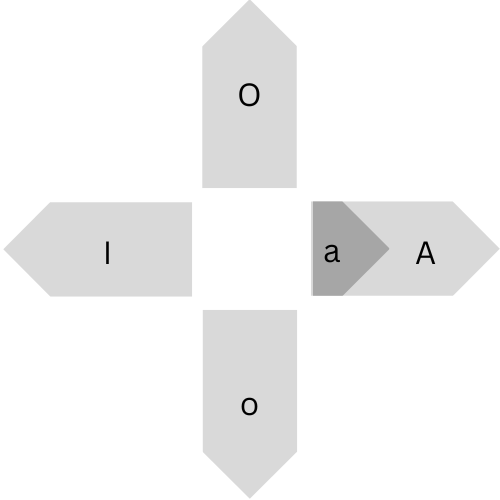
I (capital i) to go into insert mode at before the first non-blank character on the line1.
A to go into insert mode after the last character on the line2.
o to go into insert mode on the next line below, O to go to insert mode on the line above.
a to go to insert mode after the cursor.
s to delete a character, then go into insert mode.
Insert mode shortcuts to “jump” then go into insert mode
Horizontal motions:
W to go forwards by a WORD, B to go backwards a WORD.
e to go forwards to the end of a word, ge to go backwards to the end of the word.
Vertical motions:
<Ctrl> + u to move up by half a screen, <Ctrl> + d to move down by half a screen.
<Ctrl> + f to move up a page, <Ctrl> + b to move down by a page.
<line-number> + G to go to the line number you want to go to.
Jumps
A jump is a command that moves your cursor several lines away. We’ve come across a few of these already, such as “H”, “M”, “L”, “{” or “}”. You can navigate through your jump history by hitting <Ctrl> + o to go backwards (oldest) and <Ctrl> + i to go forwards through your jump list.
In part 4 at blue belt level, we’ll cover visual mode and more motions.
This is the equivalent of typing ^ followed by i. Once you’re done, you can exit insert mode by hitting <Esc>. ↩︎
This is equivalent of typing $ following by i. Again, you can exit insert mode by hitting <Esc>. ↩︎
Now that you’ve mastered the basics at white belt level, let’s get a bit faster. At yellow belt level, we’ll introduce motions and more editing commands. Let’s get started.
Yellow Belt
A motion is a movement of the cursor, either horizontally or vertically.
Horizontal motions:
w to move by word, b to move backwards by word.
0 to move cursor to the start of the line, ^ to move to start of first character on line and $ to move to the end of the line.
Vertical motions:
H to move to the top of the screen, M to move cursor to middle of screen, L to move cursor to bottom of screen.
( to move backwards by a sentence, ) to move forwards by a sentence.
{ to move the cursor up by a paragraph, } to move down by a paragraph.
Edit operators:
yy to copy a whole line.
p to paste below cursor, P to paste above cursor.
dd to delete a whole line and put into clipboard (cut).
Repeating
You can add a number at the start of a motion or operator to repeat. For example:
5w moves the cursor 5 words across, 3b moves the cursor 3 words back.
3k moves the cursor 3 lines up.
10dd deletes 10 lines.
The . (period) command repeats the last change we’ve made.
Vim is awesome. But it can be overwhelming if you’re just starting out. In this series of articles, we’ll structure learning Vim like learning a martial art1. We’ll build solid foundations at white belt, building up to advanced moves at black belt. First, let’s start with the basics at white belt level.
White Belt
In your terminal, type vim<filename> to start editing a file.
Hit i to enter insert mode. You can now start typing like any other editor. Hit <Escape> when finished to return to normal mode.
Hit u to undo, <Ctrl>+r to redo.
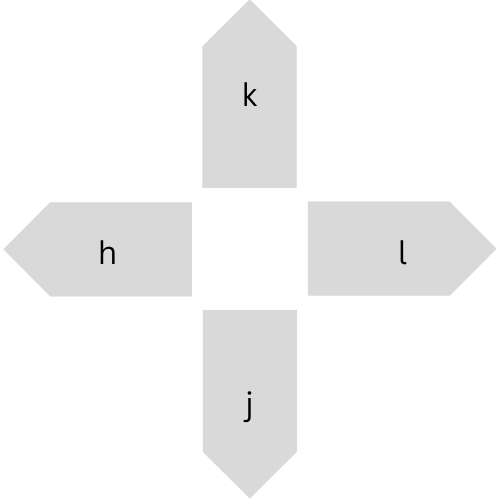
Use h to move left, j to move down, k to move up and l to move right. This was one of the hardest things to master when I started learning!
Moving around in Vim using hjkl
Hit x to delete a character.
Type :w to save your file. Type :q to quit Vim. You can combine these by typing :wq, which will write the file and close Vim.
This is all you need to start editing a file. You’ll be super slow, but at the very least, you’ll be able to edit a file.
In part two, we’ll see how we can build on these moves to build speed.
I chose ITF Taekwondo, as that’s the one I’m most familiar with: https://en.wikipedia.org/wiki/International_Taekwon-Do_Federation ↩︎
We use cookies on our website to give you the most relevant experience by remembering your preferences and repeat visits. By clicking “Accept All”, you consent to the use of ALL the cookies. However, you may visit "Cookie Settings" to provide a controlled consent.
This website uses cookies to improve your experience while you navigate through the website. Out of these, the cookies that are categorized as necessary are stored on your browser as they are essential for the working of basic functionalities of the website. We also use third-party cookies that help us analyze and understand how you use this website. These cookies will be stored in your browser only with your consent. You also have the option to opt-out of these cookies. But opting out of some of these cookies may affect your browsing experience.
Necessary cookies are absolutely essential for the website to function properly. These cookies ensure basic functionalities and security features of the website, anonymously.
Cookie
Duration
Description
cookielawinfo-checkbox-analytics
11 months
This cookie is set by GDPR Cookie Consent plugin. The cookie is used to store the user consent for the cookies in the category "Analytics".
cookielawinfo-checkbox-functional
11 months
The cookie is set by GDPR cookie consent to record the user consent for the cookies in the category "Functional".
cookielawinfo-checkbox-necessary
11 months
This cookie is set by GDPR Cookie Consent plugin. The cookies is used to store the user consent for the cookies in the category "Necessary".
cookielawinfo-checkbox-others
11 months
This cookie is set by GDPR Cookie Consent plugin. The cookie is used to store the user consent for the cookies in the category "Other.
cookielawinfo-checkbox-performance
11 months
This cookie is set by GDPR Cookie Consent plugin. The cookie is used to store the user consent for the cookies in the category "Performance".
viewed_cookie_policy
11 months
The cookie is set by the GDPR Cookie Consent plugin and is used to store whether or not user has consented to the use of cookies. It does not store any personal data.
Functional cookies help to perform certain functionalities like sharing the content of the website on social media platforms, collect feedbacks, and other third-party features.
Performance cookies are used to understand and analyze the key performance indexes of the website which helps in delivering a better user experience for the visitors.
Analytical cookies are used to understand how visitors interact with the website. These cookies help provide information on metrics the number of visitors, bounce rate, traffic source, etc.
Advertisement cookies are used to provide visitors with relevant ads and marketing campaigns. These cookies track visitors across websites and collect information to provide customized ads.