Tag: intellij

  • My Vim Setup for Day to Day

    Here’s a quick guide on how I use Vim on a day to day basis as a developer. First, we’ll go through some settings, then we’ll cover apps I use the most often. These days, I write code mostly on a Mac, so feel free to substitute the shortcuts below as required. If you’re new to Vim, checkout my Vim tutorial.

    Keyboard Settings

    • Set your key repeat rate to “high”.
      Useful when you want a command to repeat quickly, especially when using ‘h’, ‘j, ‘k’, ‘l’ to move about.

    Remap the Keyboard

    • Map the Caps lock key to <Ctrl>.
      I’ve found this mapping really useful, as it keeps your hands on from the home row for <Ctrl> commands. Plus, when was the last time you used Caps Lock key?
    • Map the Right Command key to <Enter>.
      When your hands are on the home row, this makes it easy for your thumb to reach <Enter>. On any other OS, map <Enter> to whatever key is on the right side of <Space>.
    • Map h j k l to arrow keys, using a modifier key.
      When you’re used to Vim, nothings more annoying that trying to use h, j, k, l to move about in a non-Vim environment. On a Mac, you can use Karabiner Elements to add complex modifications.

    Complex Modifications in Karabiner Elements

    Vim in IntelliJ

    In IntelliJ, go to the plugins marketplace (Settings -> Plugins -> Marketplace) and search for IdeaVim.

    Vim in VSCode

    In VSCode, go to the plugins section and download VSCodeVim.

    Vim in the Browser

    In Chrome, there’s a choice of extensions that help you navigate pages using Vim key bindings. I’m currently using Vimium.
    In Safari, you can download Vimari from the App Store.

    Uncommon Shortcuts

    Here are some shortcuts that are maybe not as well known, but really useful. They all work really well when <Ctrl> is assigned to Caps Lock, as mentioned above. This means you don’t have to leave your home row when running them:

    • Backspace using <Ctrl> + h.
      This works in MacOS in non Vim environments too.
    • Getting back to normal mode using <Ctrl> + [.

    IntelliJ Specific Shortcuts

    I tend to use these quite a bit in IntelliJ:

    • Splitting Windows.
      <Ctrl> + w, then v to split vertically, s to split horizontally.
      Then, <Ctrl> + w, followed by either h, j, k, or l to move between windows. More here.
    • Go to Project Window.
      Type Command + 1 to go to the project window. Then, you can move up and down the file list using the complex modification above, where you use h, j, k l with a modifier key.
    • Running tests using <Ctrl> + Shift + r.
      Non Vim keybinding, but really useful.
    • Show recent file list using Command + e.
      Go up and down the file list with the complex modification above with j and k.
  • Top 10 IntelliJ Shortcuts

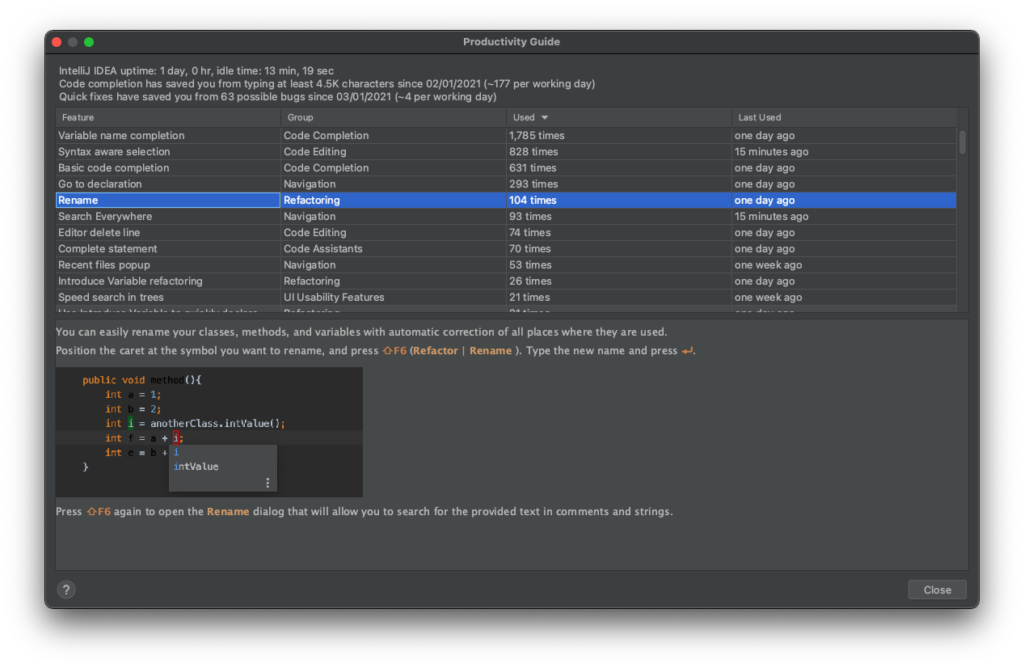
    Learning IntelliJ (or other IDE) shortcuts can make us more productive developers. In this post, I’ll highlight my top 10 IntelliJ shortcuts, which I found using the productivity guide:

    Go to ‘Help’ > ‘Productivity Guide’ in IntelliJ

    10. File Structure Popup

    ⌘F12 or Ctrl + F12

    Shows you the structure of a class with methods and properties – handy when looking at a large class. Also, you can search by typing in the popup.

    9. Go to implementation(s)

    ⌥⌘B or Ctrl + Alt + B

    Go to the implementation of the method or property under the cursor. Equivalent of holding ⌘ or Ctrl + clicking using a mouse.

    8. Comment / uncomment with line comment

    ⌘/ or Ctrl + /

    Comment out a whole line or selected block.

    7. Extract variable

    ⌥⌘V or Ctrl + Alt + V

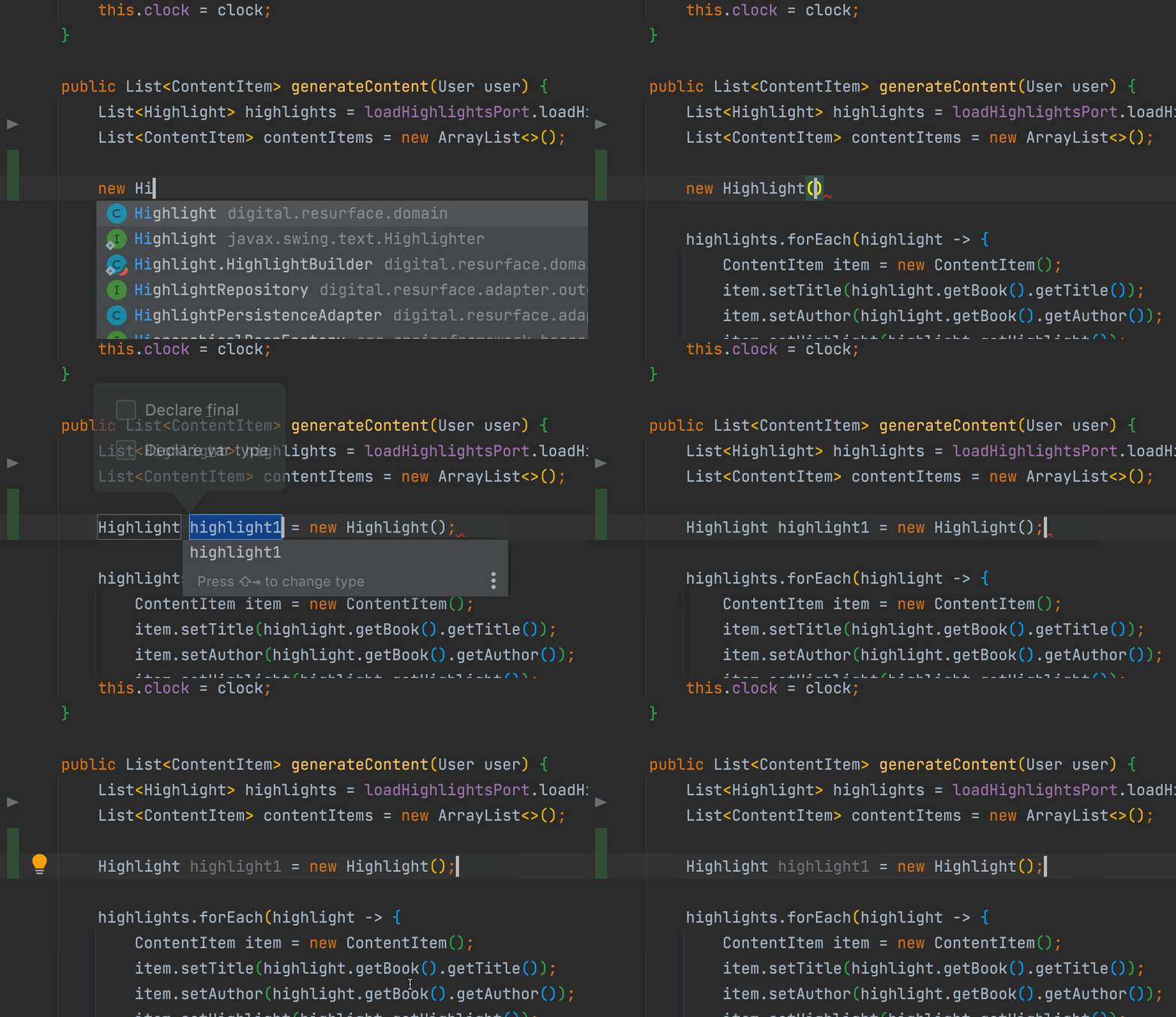
    Create a variable from a highlighted snippet automatically. This is useful when creating a new variable too:

    Using ‘Extract variable’ to create a new variable

    6. Recent files popup

    ⌘E or Ctrl + E

    Shows the files you’ve recently worked on.

    5. Complete statement

    ⇧⌘⏎ or Ctrl + Shift + Enter

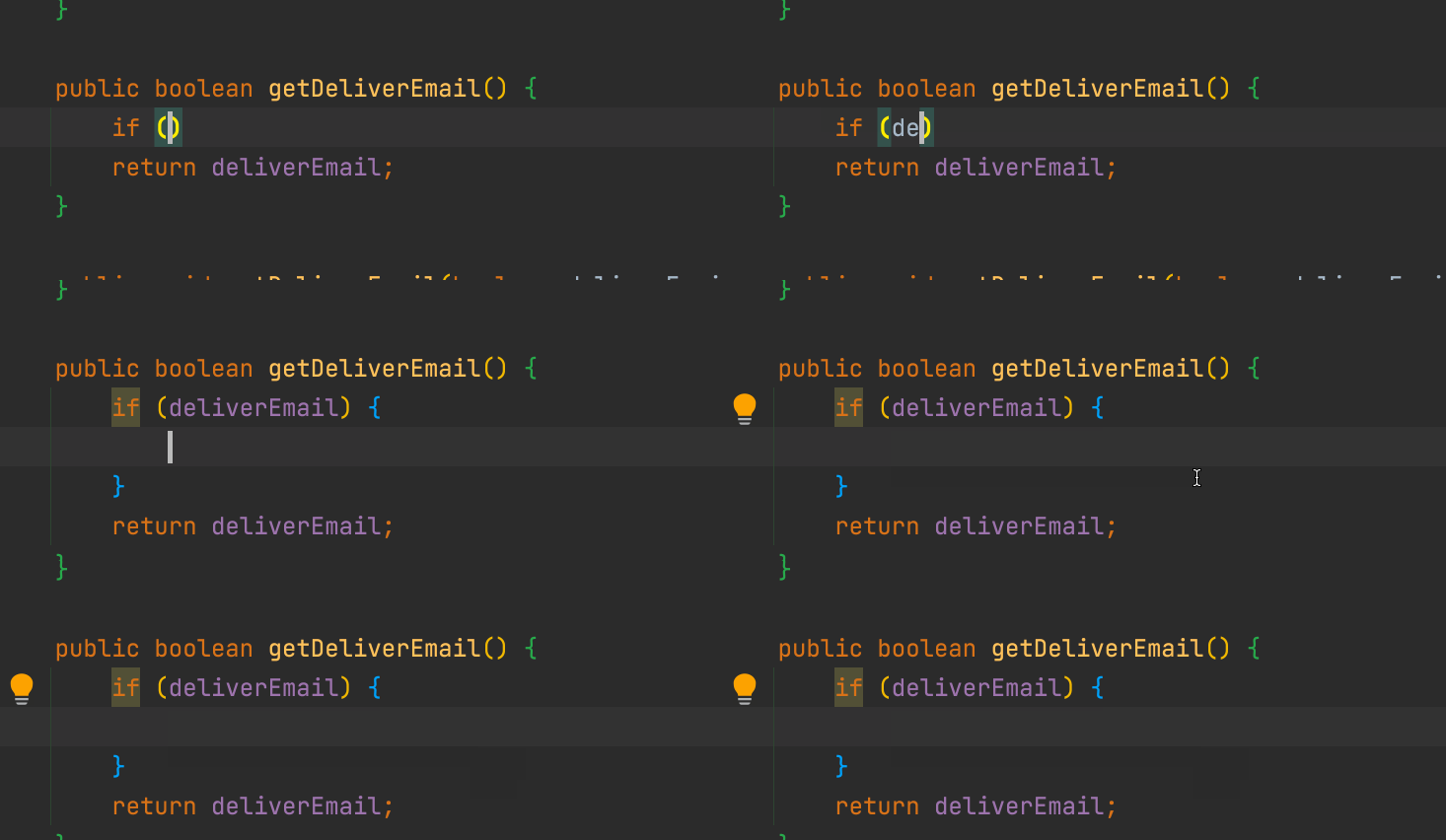
    My favourite shortcut! Start typing and IntelliJ will try to complete the structure around you. For example, if you’re typing an ‘if’ statement, you can easily add the surrounding braces:

    Using ‘Complete Statement’ on an ‘if’ statement

    4. Delete whole line

    ⌘⌫

    Rather than deleting individual characters, this is useful if you want to get rid of the whole line.

    3. Search Everywhere

    Double ⇧ or Double Shift

    A good place to start when looking for a class name, a method name, an action or even a setting.

    2. Rename

    ⇧F6 or Shift + F6

    As developers, we want our code to be as readable as possible. That means deciding a variable name can take a few attempts. This shortcut makes it easy.

    1. Extend / Shrink Selection

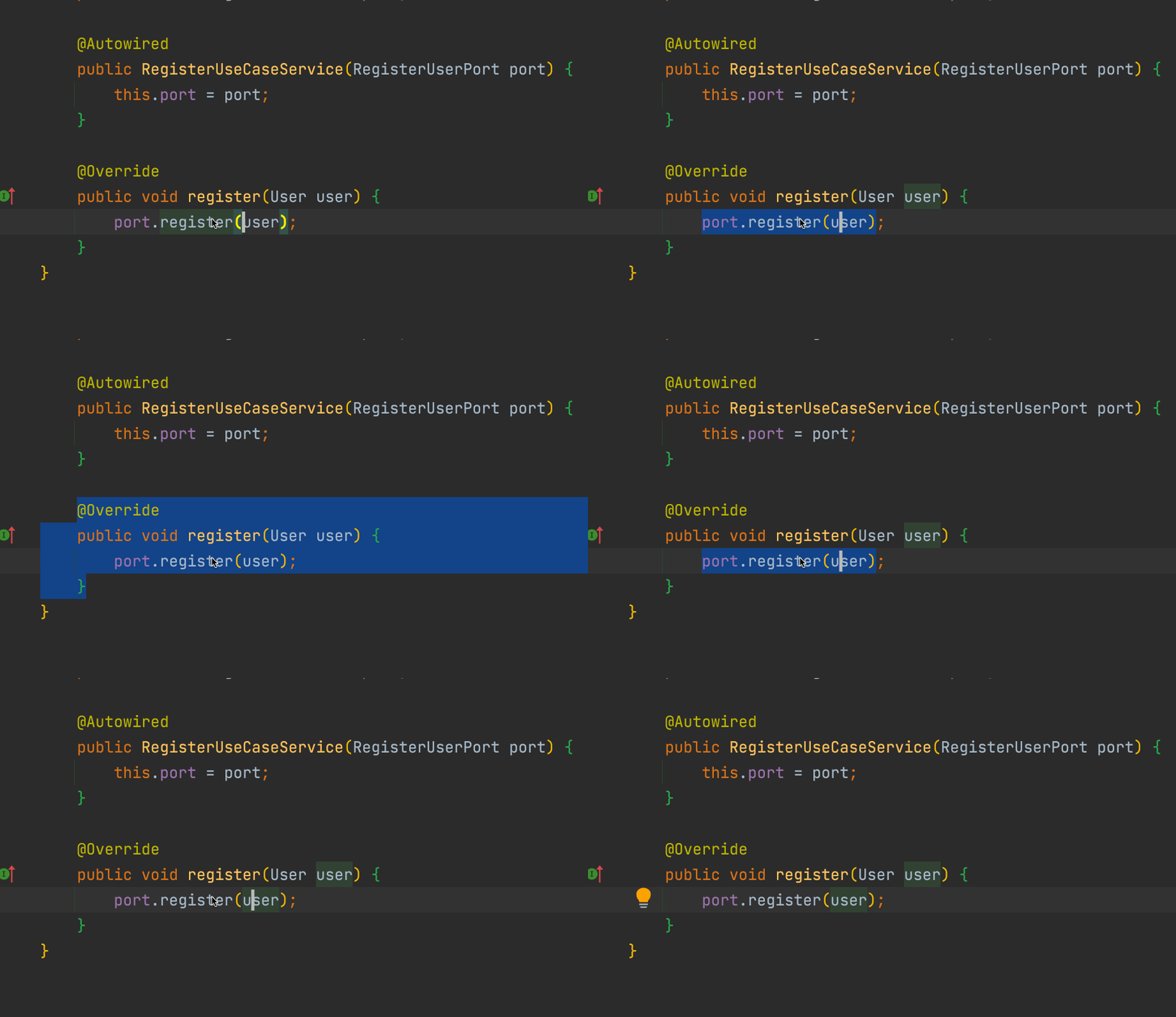
    ⌥↑ / ⌥↓ or Ctrl + W / Ctrl + Shift + W

    This is so handy, it should be part of the OS for any text selection:

    Bonus – Find Action

    ⌘⇧A or Ctrl + Shift + A

    Again, a really useful shortcut to find pretty much anything in the IDE – creating a new branch, stashing current changes etc.

    For the more shortcuts, check out the Jetbrains official site.